
User guide · Company panel
8 Vehicles
Each vehicle is assigned to a route and a driver. A driver can start a trip only with a vehicle assigned to them and on that vehicle's route; passengers see this vehicle on the map.
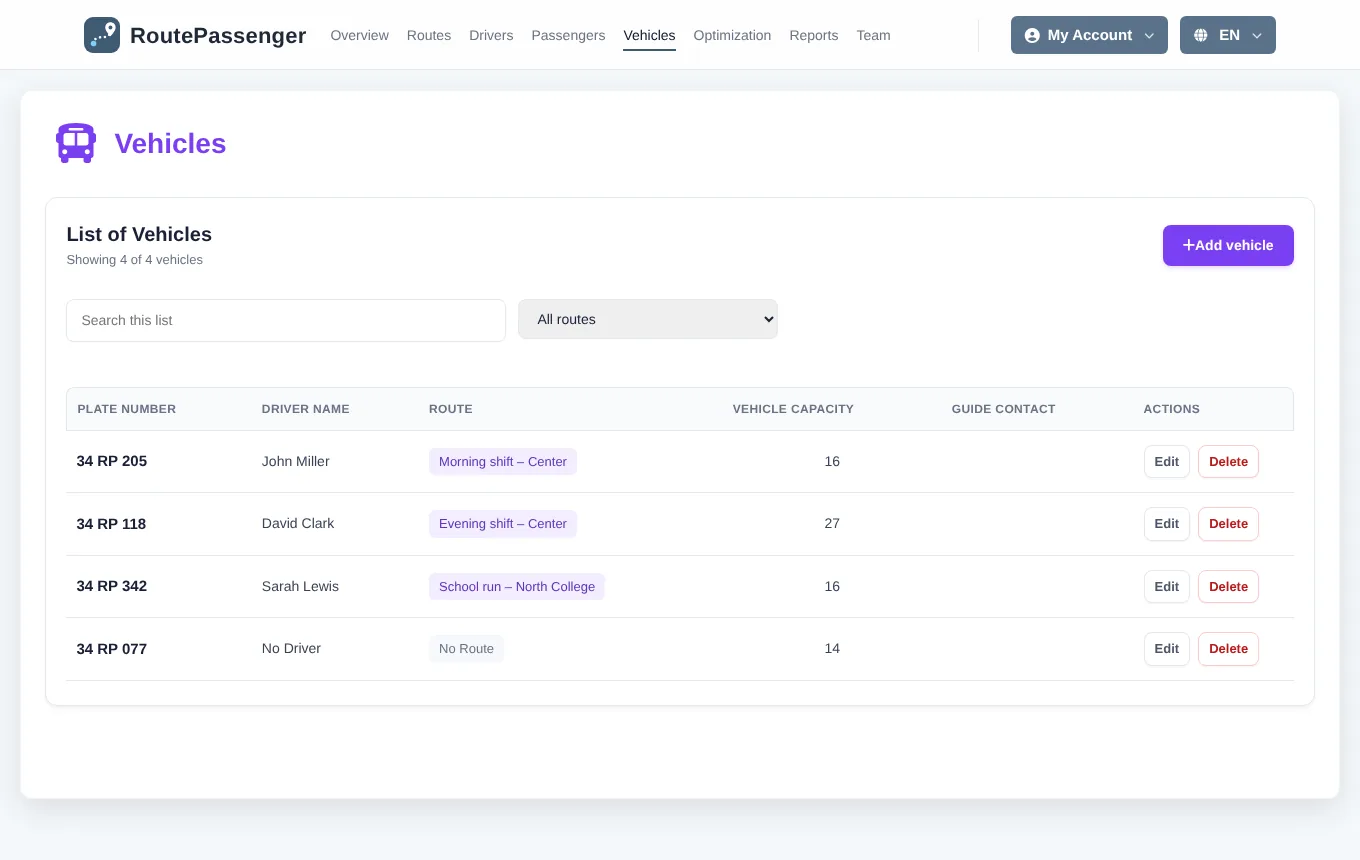
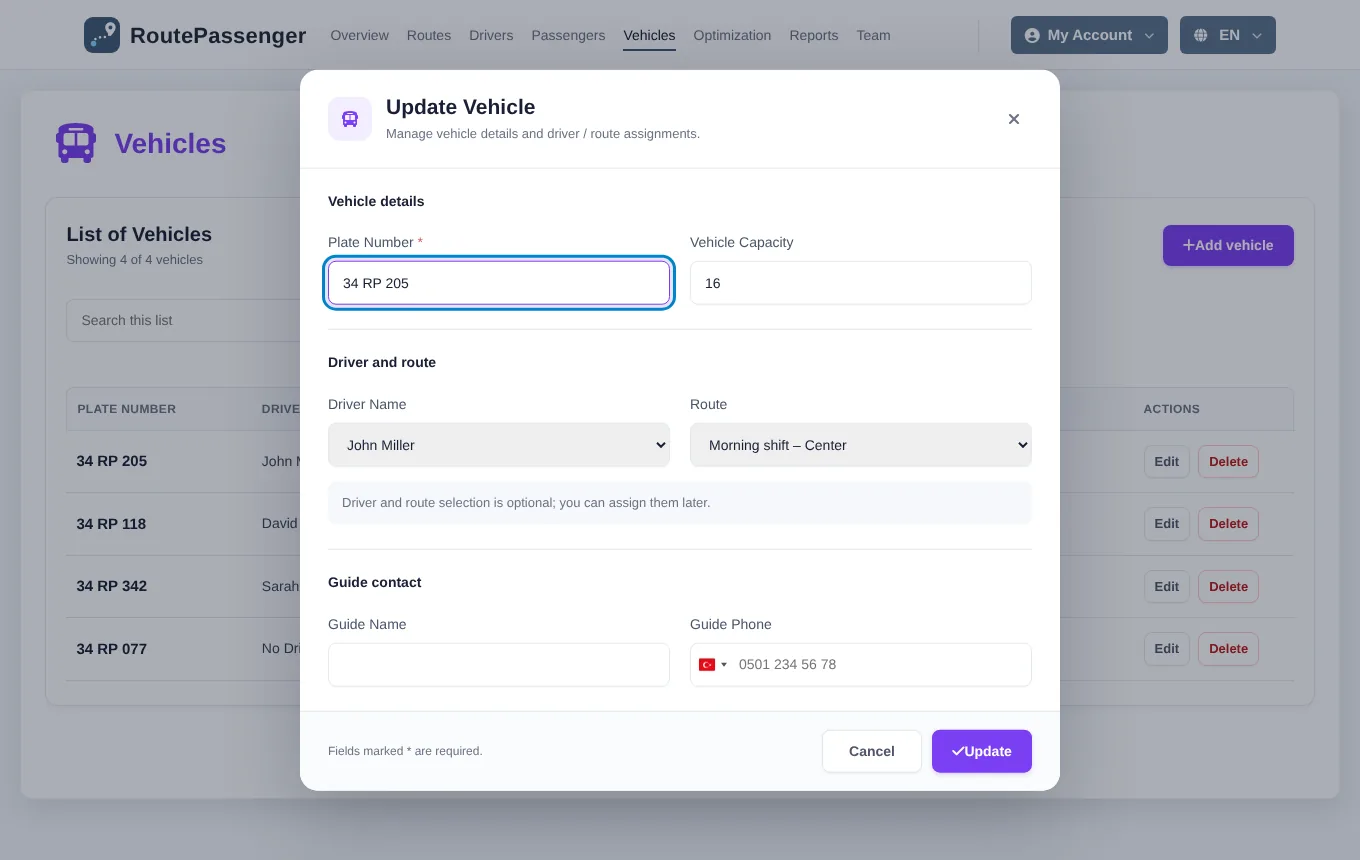
Adding a vehicle
- Open Vehicles and click Add vehicle.
- Enter the Plate (required) and the Capacity. Capacity is used by route optimization.
- Under Driver and route choose the vehicle's driver and route. This is optional; you can assign them later.
- If an escort (guide) travels in the vehicle, enter their name and phone under Guide contact.
- Click Save.
List, search and editing
- The search box filters by plate, driver or route name; the menu next to it shows only one route's vehicles.
- Change the assignment with Edit. When the driver or route changes, the list in the driver's app updates by itself.
- Delete removes the vehicle.
The Vehicles link in the route list shows only the vehicles assigned to that route.