
User guide · Mobile apps
15 Driver app (Route Driver)
Route Driver turns the driver's phone into the vehicle's location sender. Location is shared only while a trip is running. The app has four tabs: Companies, My trips, Map and My Account.
1. Install and sign in
- Install Route Driver from the App Store or Google Play.
- Sign up with your own email using Create account. This is your personal account; it does not belong to the company and stays with you if you change jobs.
2. Adding the company account
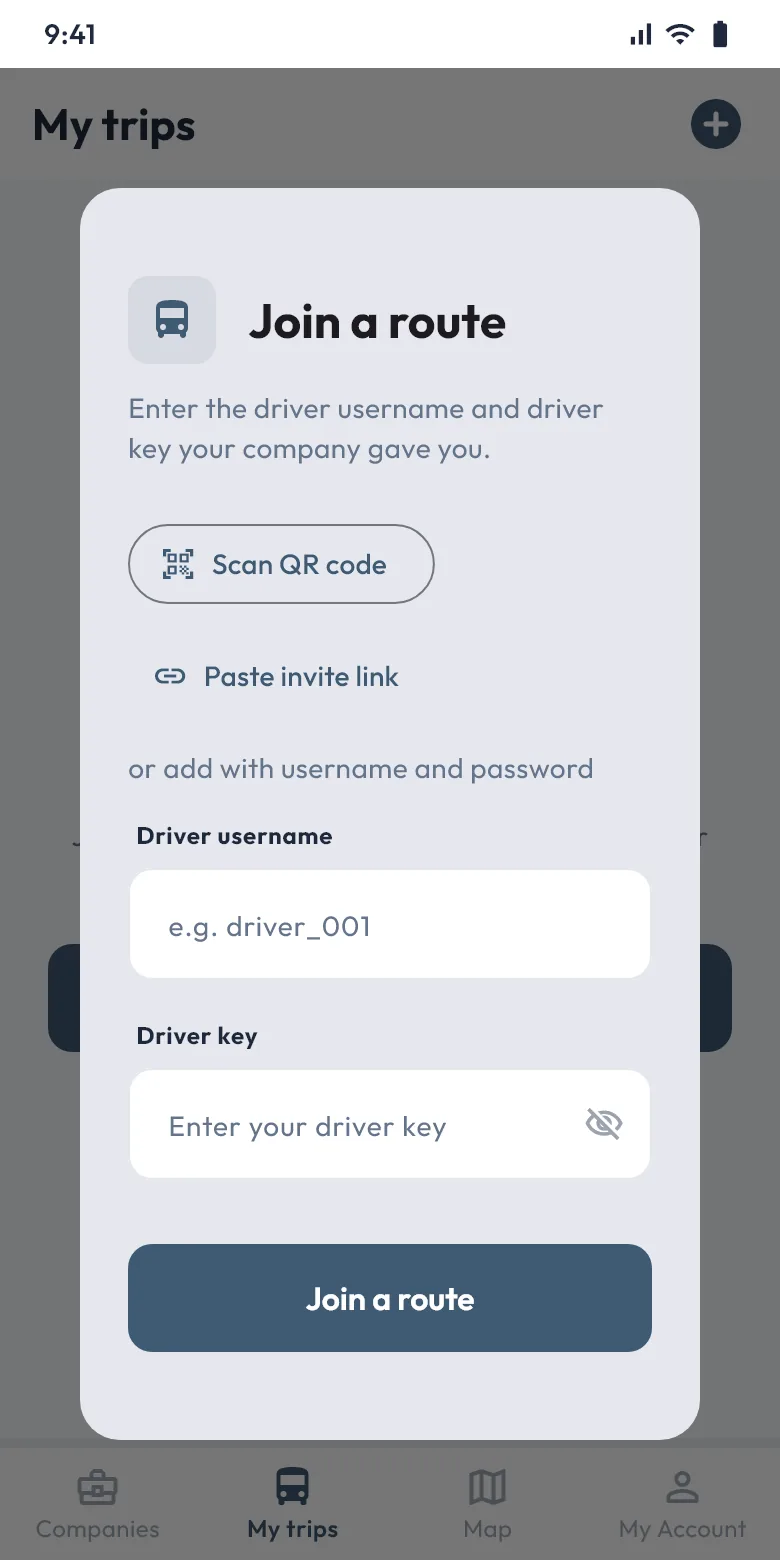
- Tap the + icon at the top.
- Scan the QR code from your company with Scan QR code, paste the link with Paste invite link, or type the driver username and key.
- Check the company and account name and confirm.
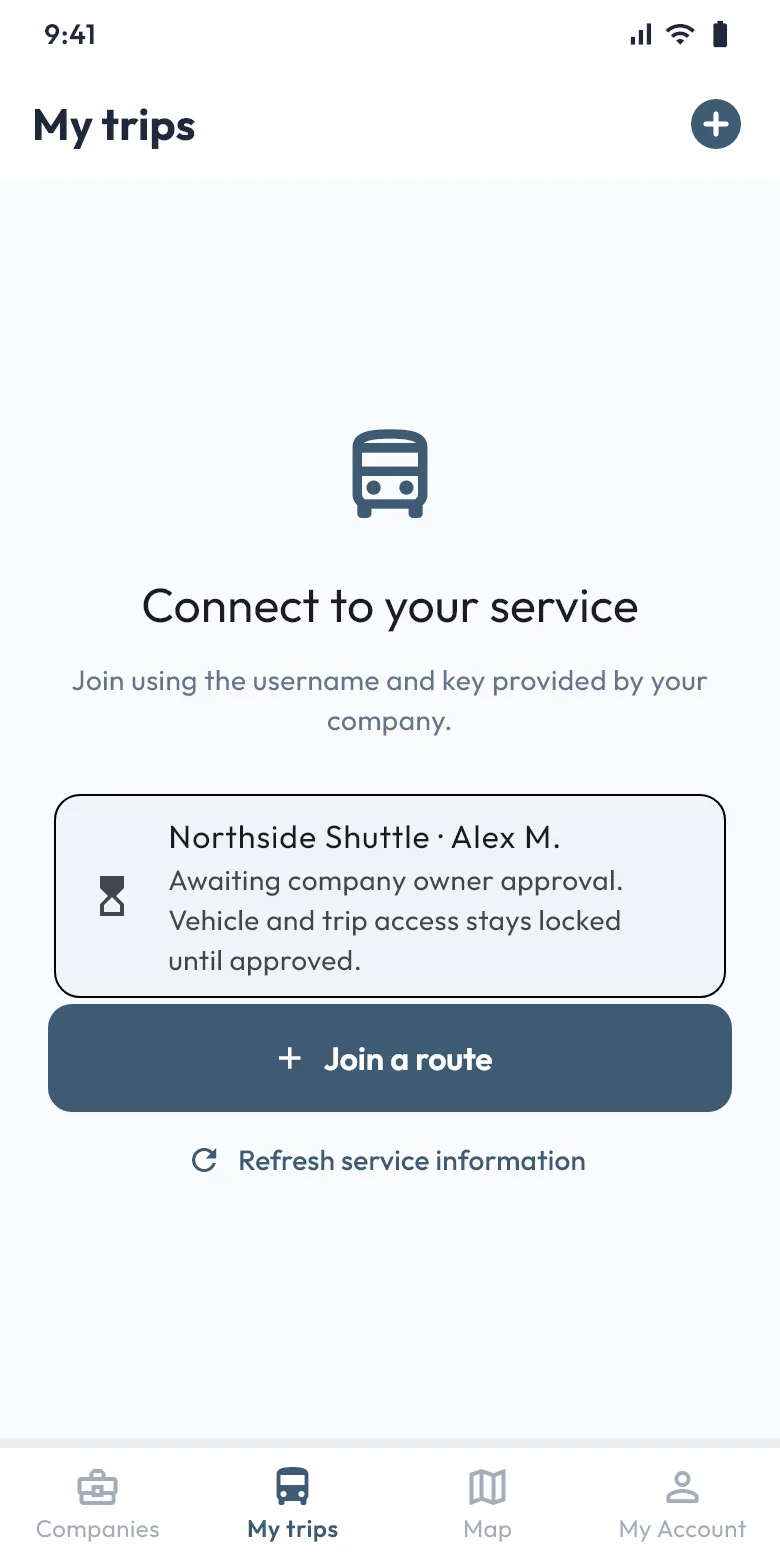
- The app shows "Awaiting company owner approval". Vehicle and trip access stays locked until the company approves.
3. Starting a trip
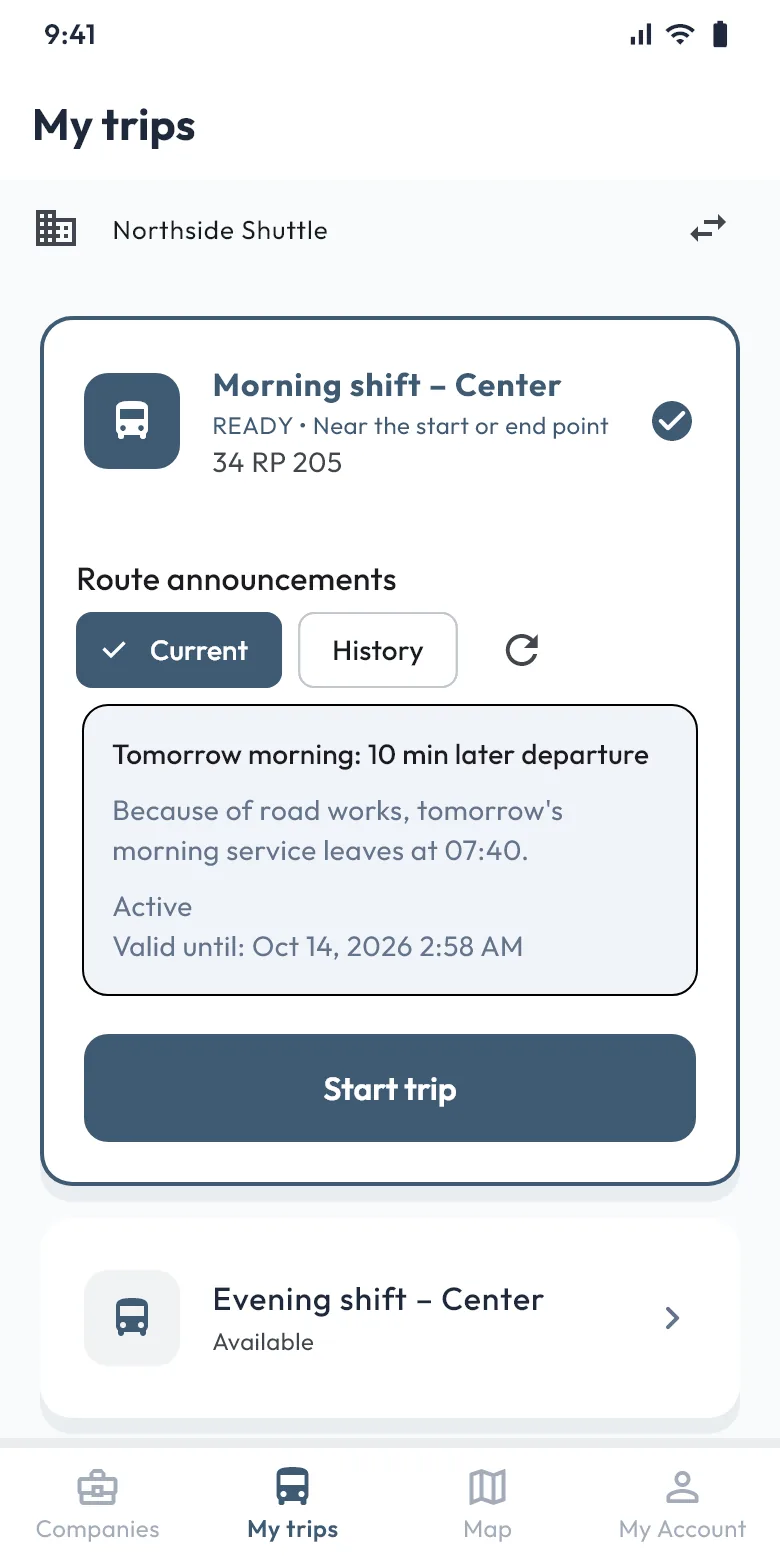
- Open My trips. If you work for more than one company, switch company in the row at the top.
- Choose your route. The vehicle's plate and readiness ("READY • Near the start or end point") are shown.
- If the route has a separate return road, choose the Trip direction (Outbound/Return).
- Tap Start trip. If the phone asks for location permission, allow it; choose "Always" if possible.
4. During the trip
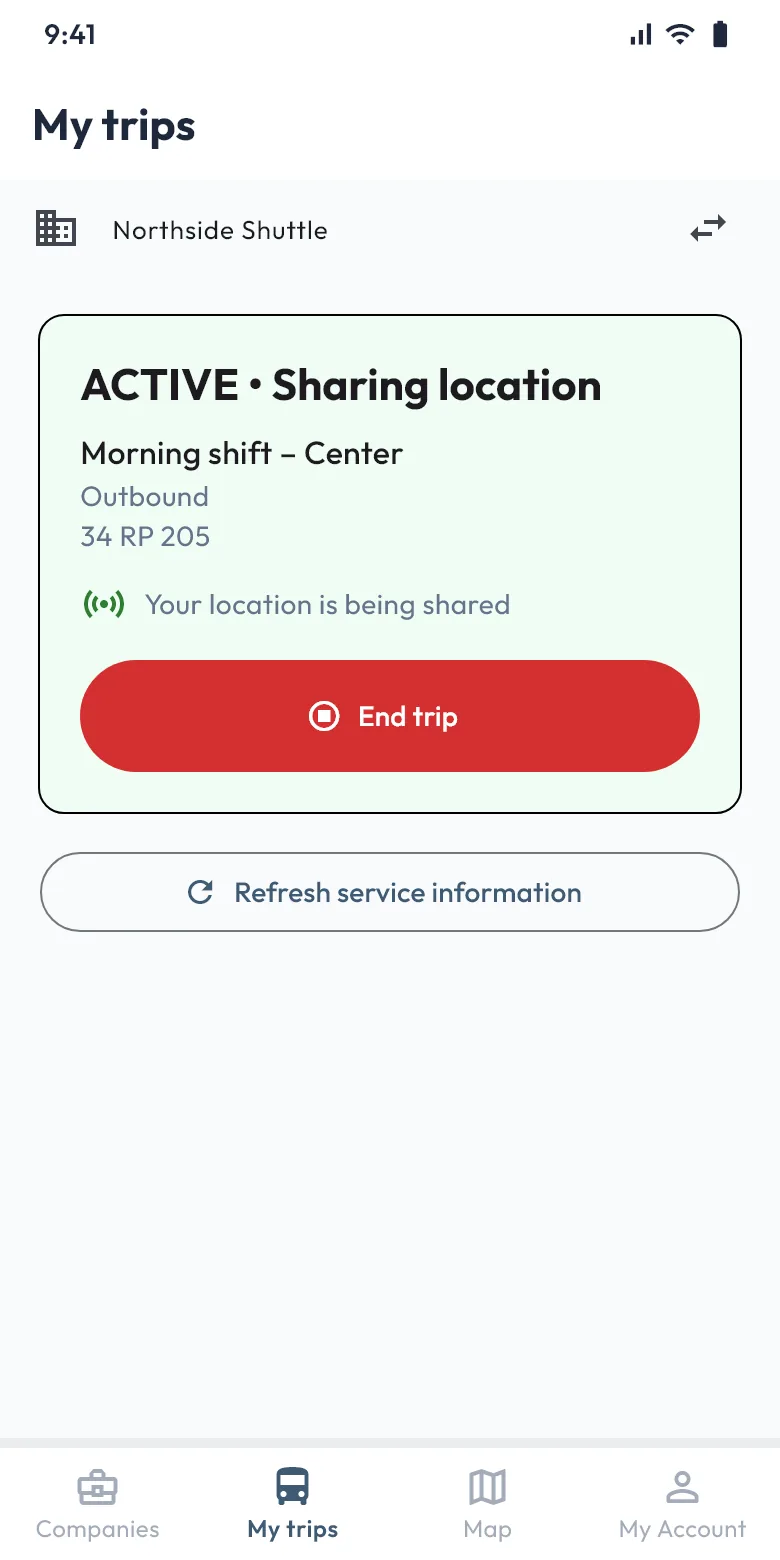
- The card "ACTIVE • Sharing location" is shown. You can lock the screen or use other apps; sharing continues and a notification shows it.
- "Weak GPS signal" means sending waits until the phone gets a better position.
- Do not swipe the app away from the app list; sharing stops until you open it again.
- The route card's Route announcements show the company's announcements.
5. Ending the trip
Tap End trip and confirm. Location sharing stops immediately. Without internet the trip is closed on the phone and the server is told when the connection returns.
My Account
- The Route announcement notifications switch turns announcement notifications on or off; the phone's notification permission is needed.
- In the Companies tab you can remove a company account with Remove driver account. End any active trip first. Adding it again needs a new approval.