User guide · Company panel
13 Team and institution portal
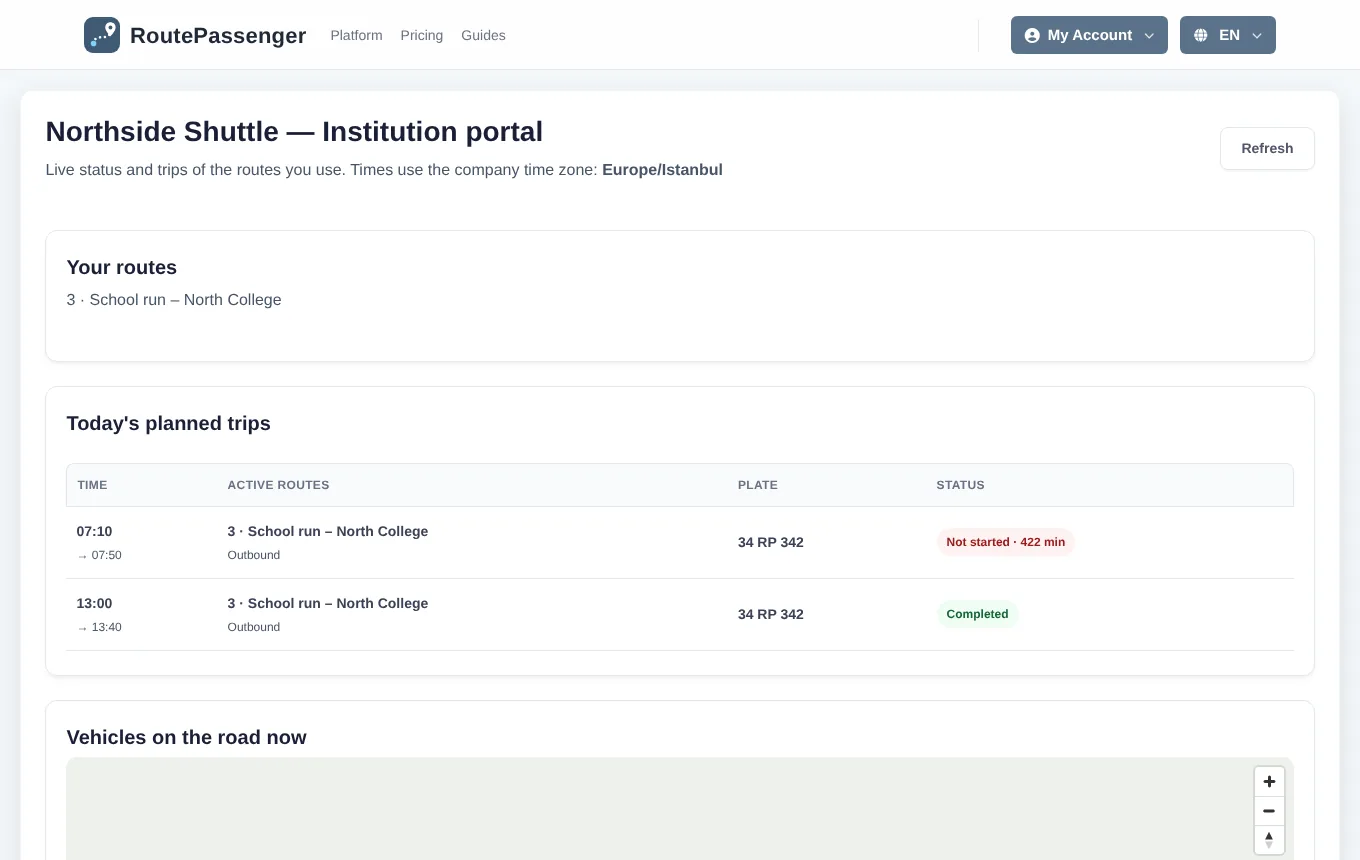
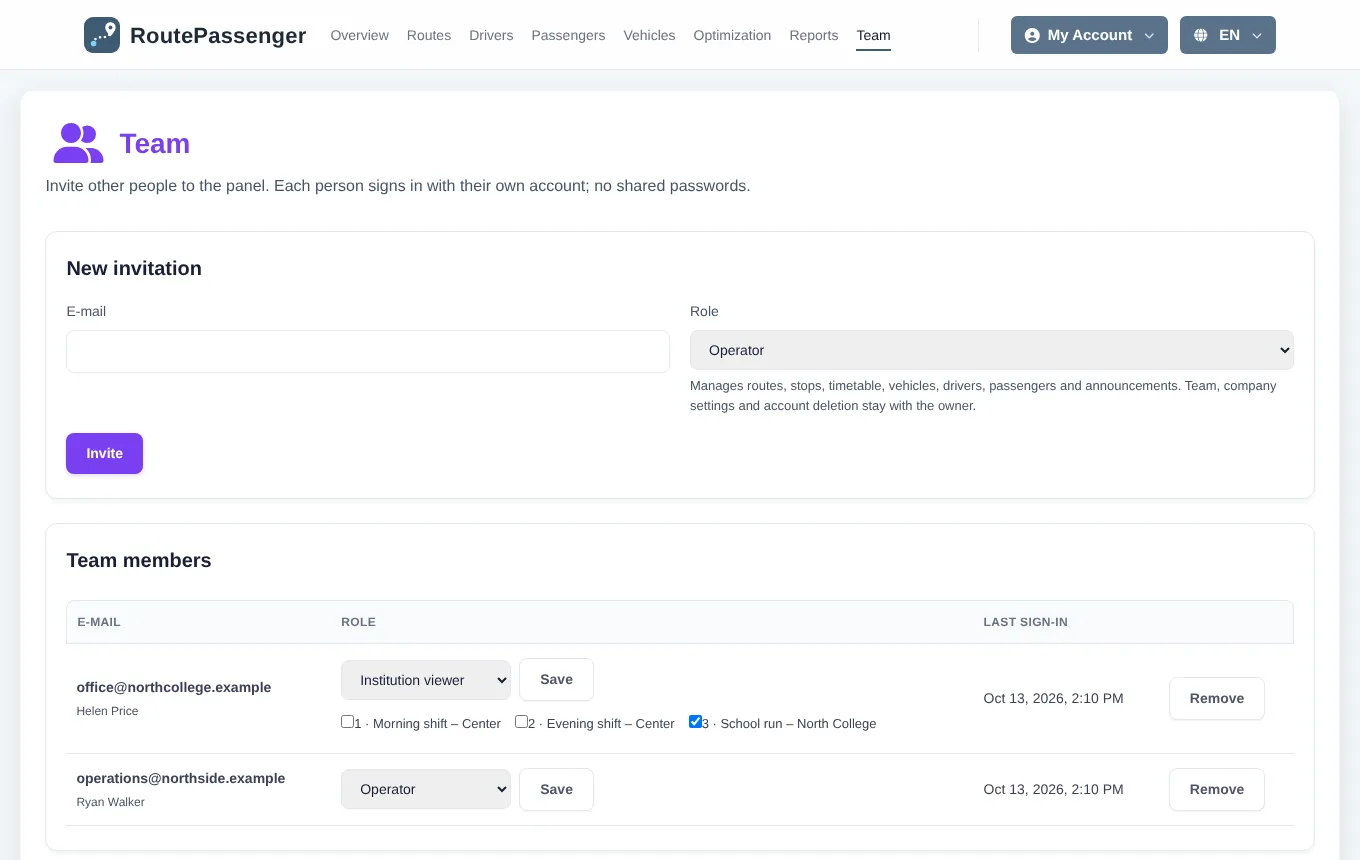
Other people can use the panel, each with their own account; no password is shared. You can also open a portal for the institutions you serve, such as a school or factory, that shows only their routes.
Roles
| Role | What they can do |
|---|---|
| Owner | Everything. Team, company settings and closing the account are owner-only. |
| Operator | Day-to-day work: routes, stops, timetables, vehicles, drivers, passengers, announcements, pickup requests, alert time. |
| Viewer | Reads the whole panel but cannot change anything. A "read-only" band shows at the top of the page. |
| Institution viewer | Sees only the institution portal: today's plan for the chosen routes, vehicles on the road and trips of the last 7 days. |
Sending an invitation
- Open Team.
- Enter the person's email and choose the role. For an institution viewer also choose the routes they may see.
- Click Invite. The invite link is shown only once; copy it and send it yourself (no email is sent).
- The person opens the link, signs in with Google or email using the same address, and accepts the invitation.
Managing members
In the Team members list you can change a person's role or remove them. The change applies at their next action; they need to sign in again with the new role. A removed person can come back only with a new invitation.
Institution portal
When an institution viewer signs in, the portal opens directly. It shows only the routes you opened to them: today's planned trips and their status, vehicles on the road now (map) and trips of the last 7 days.