
User guide · Company panel
12 Reports
The Reports page shows the trips that actually happened: when they started and ended, the difference from the plan, kilometres driven, how complete the location recording was and how much each vehicle was used. Dates and times are in the company's time zone.
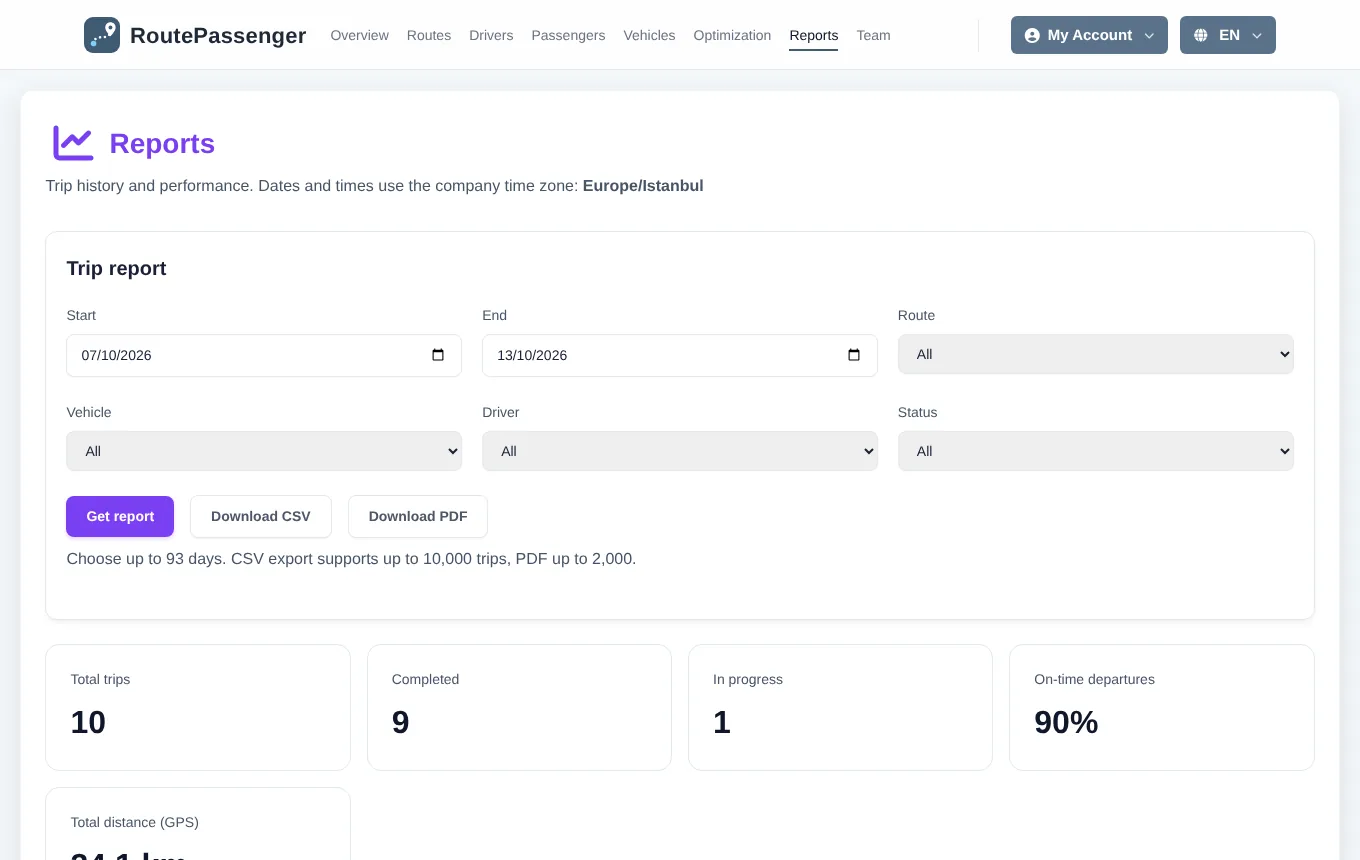
Getting a report
- Open Reports.
- Choose the Start and End dates (the last 7 days by default, up to 93 days).
- Optionally filter by Route, Vehicle, Driver and Status (completed/active).
- Click Get report.
Summary
- Total trips, completed and active.
- On-time departure: the share of trips that left at most 5 minutes late against the plan. Only trips matched to a plan count; the number of unmatched trips is shown separately.
- Total distance: calculated from GPS records. Active trips and trips that ended in the last 30 minutes are not in the total yet.
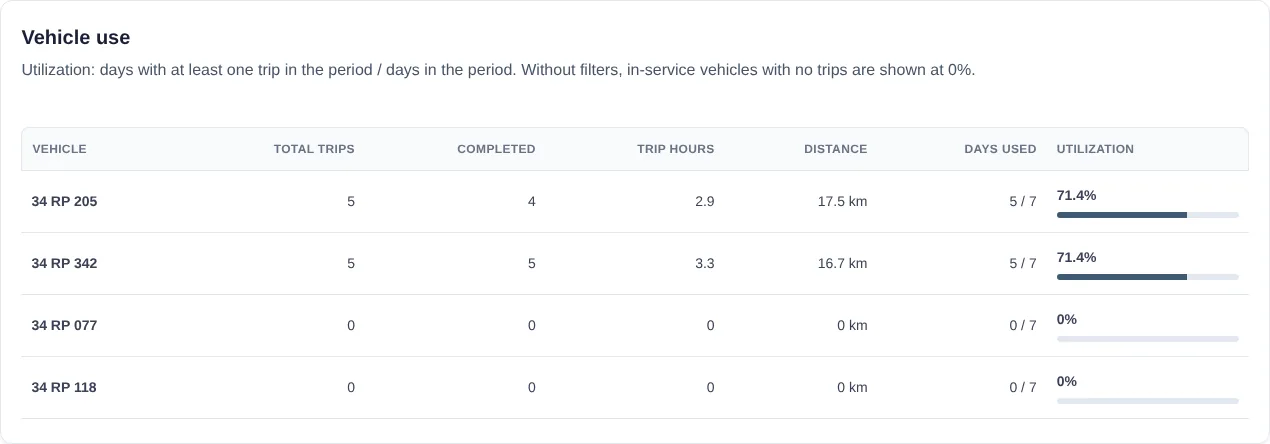
Vehicle use
For each vehicle: number of trips, trip hours, kilometres and the utilisation (days with at least one trip / days in the period). Without filters, vehicles with no trips are listed at 0%.
The trip table
Each trip shows its route, vehicle, driver, start and end, duration, distance, the matched plan and the difference from it. The Location data column shows how complete the recording is: gaps longer than 3 minutes count as recording gaps; Data details lists when they happened.
Export
- Download CSV: all trips for the same filters (up to 10,000), opens in Excel.
- Download PDF: a landscape A4 report with the summary, vehicle use and trip table (up to 2,000 trips).
The export buttons are enabled after you get the report; if you change a filter, get the report again.