
User guide · Getting started
1 Create your account and company
To use RoutePassenger you first open an account as the company owner and then create your company. Setup takes a few minutes; after that you can add routes, vehicles and drivers.
Who uses what?
| Who | Where | What they do |
|---|---|---|
| Company owner and team | Web panel (this site) | Manage routes, vehicles, drivers and passengers; follow trips and reports. |
| Driver | Route Driver app | Starts the trip; the vehicle's location is shared while the trip runs. |
| Passenger or parent | Route Passenger app | Follows the vehicle live, chooses a stop, gets approach notifications and announcements. |
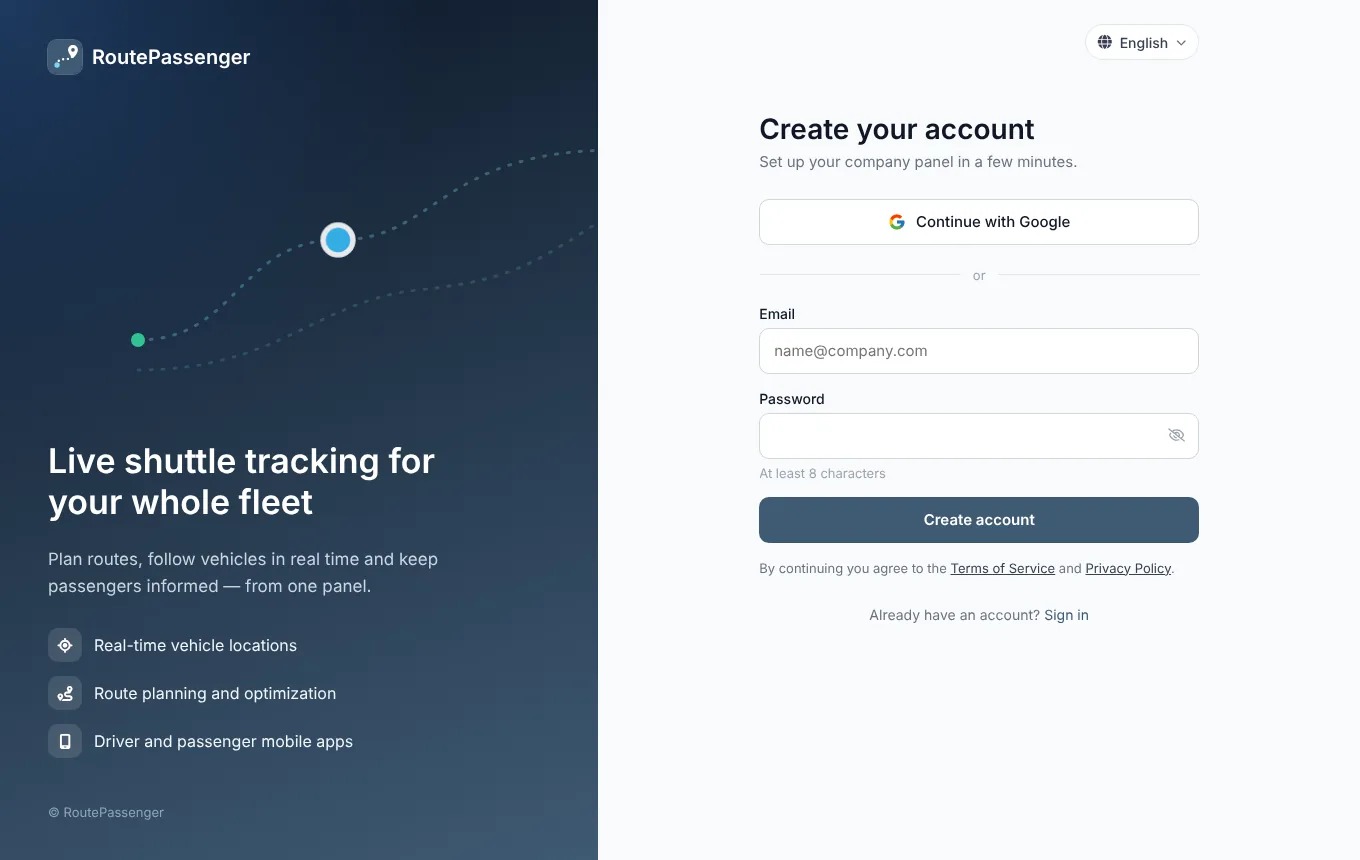
1. Open an account
- Click Get started at the top of the site.
- Choose Continue with Google, or enter your email and a password of at least 8 characters and click Create account.
- If you signed up with email, open the verification link we send you. There is no such step with Google.
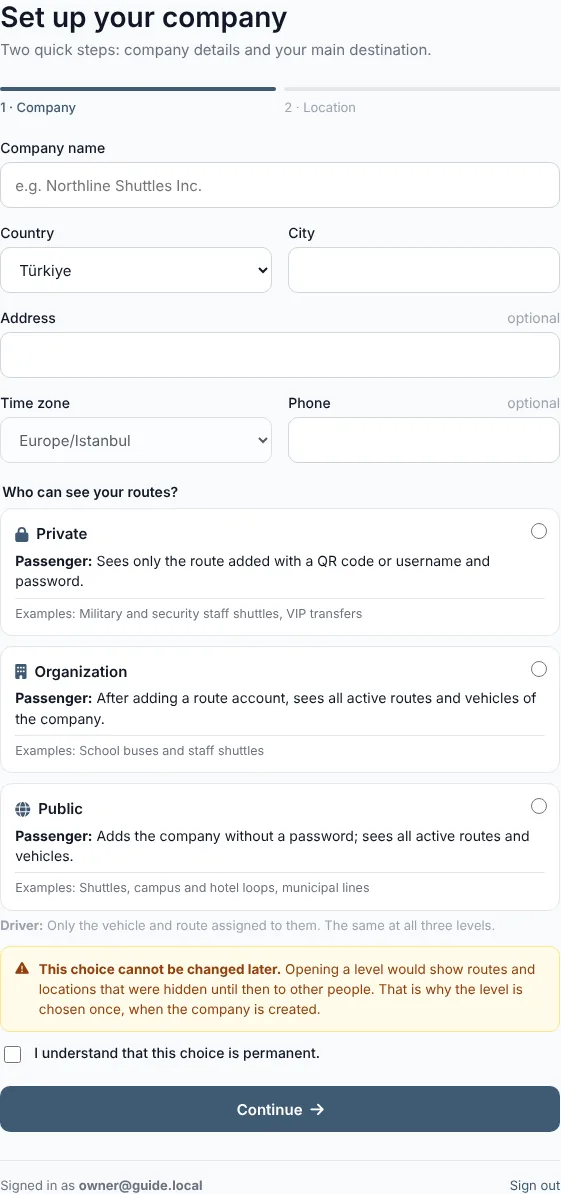
2. Set up your company
After signing up you see a two-step setup.
- Company details: enter the company name, country, city and time zone. Address and phone are optional. Trips, reports and late alerts use this time zone.
- Access level: under "Who can see your routes?" choose Private, Organization or Public. Nothing is preselected; see Access levels for details.
- Tick "I understand that this choice is permanent" and click Continue.
- Location: mark your main destination on the map: the school for school buses, the workplace for staff shuttles. The map moves to the address or city you entered; drag the pin to adjust it.
- Check the summary of your access level and click Create company. The panel opens.
3. First setup, in order
While the panel is empty, the Overview shows a short setup card. The suggested order:
- Add a route (start, end, waypoints, the passengers' join details).
- Add a driver and send them their join details or QR code.
- Add a vehicle and assign it to the route and the driver.
- Optionally add stops and a timetable.
- Give passengers the route's QR code or username and key (Passenger app).