
User guide · Mobile apps
16 Passenger app (Route Passenger)
With Route Passenger a passenger or parent sees where the vehicle is in real time, chooses a stop, and gets approach notifications and announcements from the company. The app has four tabs: Companies, Routes, My service and My Account.
1. Install and sign in
- Install Route Passenger from the App Store or Google Play.
- Sign up with your own email using Create account.
2. Joining a service
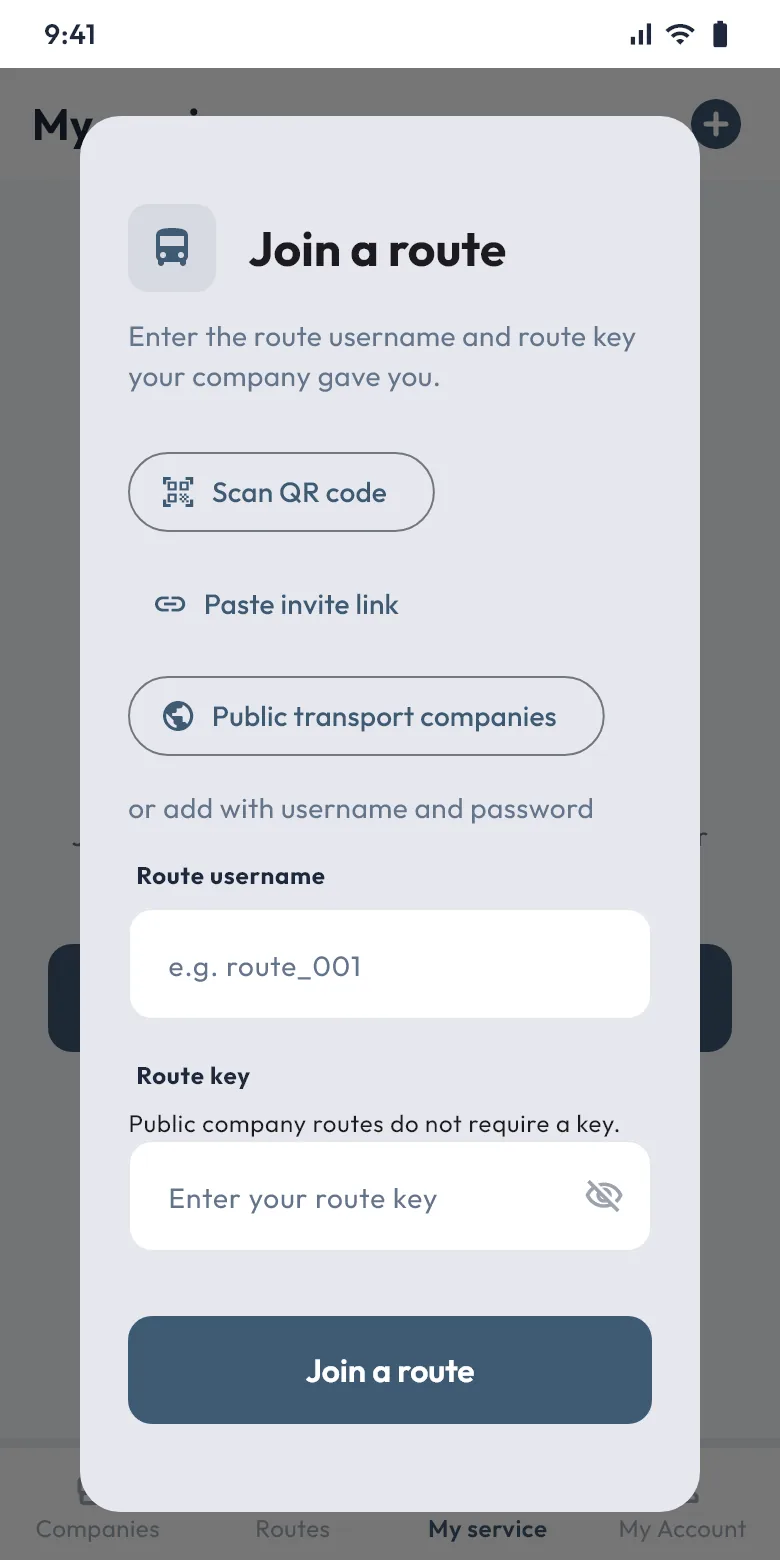
- Tap the + icon at the top.
- Scan the QR code from the company with Scan QR code, paste the link with Paste invite link, or type the route username and key.
- A public transport company can be chosen without a key from Public transport companies.
- After joining, the message tells you what you will see, depending on the company's access level.
3. Companies: your accounts
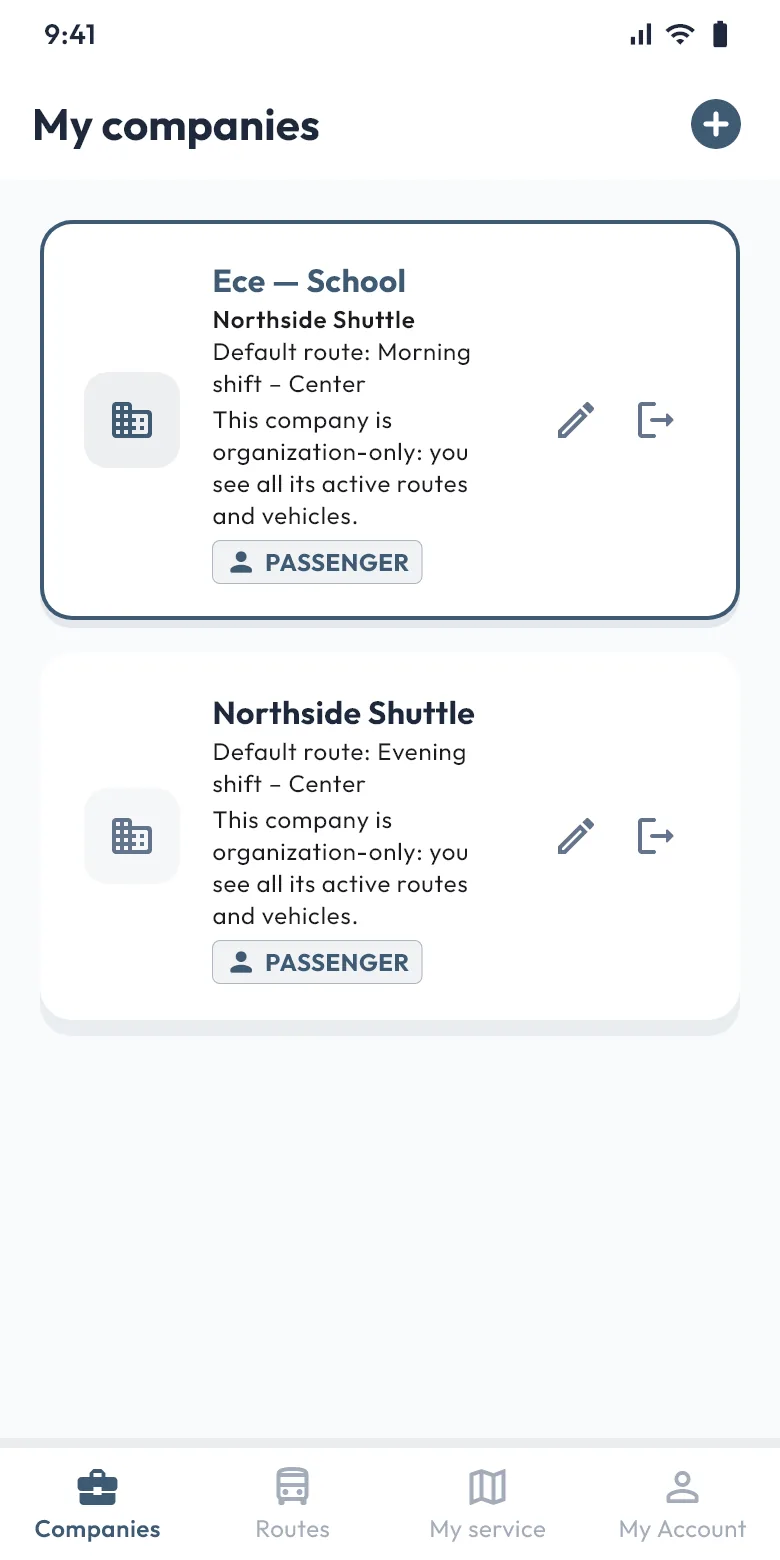
Every company account you add is shown as a card with the company name, the default route and what the company shows you (for example "This company is organization-only: you see all its active routes and vehicles").
- Give the account your own name with the pencil icon, for example "Ece — School". Only you see this name.
- If two children use different services of the same company, add two accounts; each remembers its own default route.
- The exit icon removes the account; your other accounts stay.
4. Routes: my stop, notifications and announcements
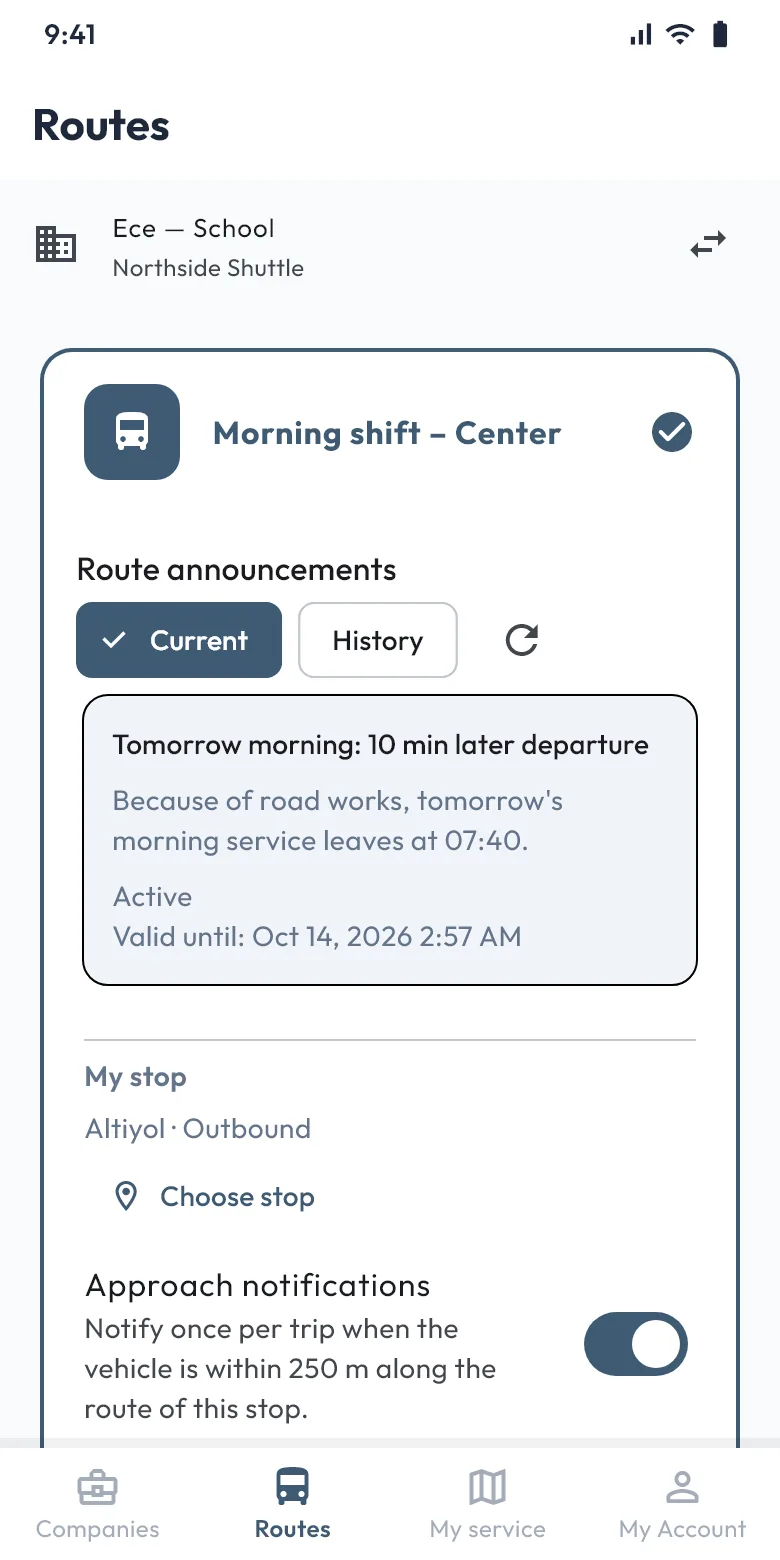
- In the Routes tab choose the route to follow.
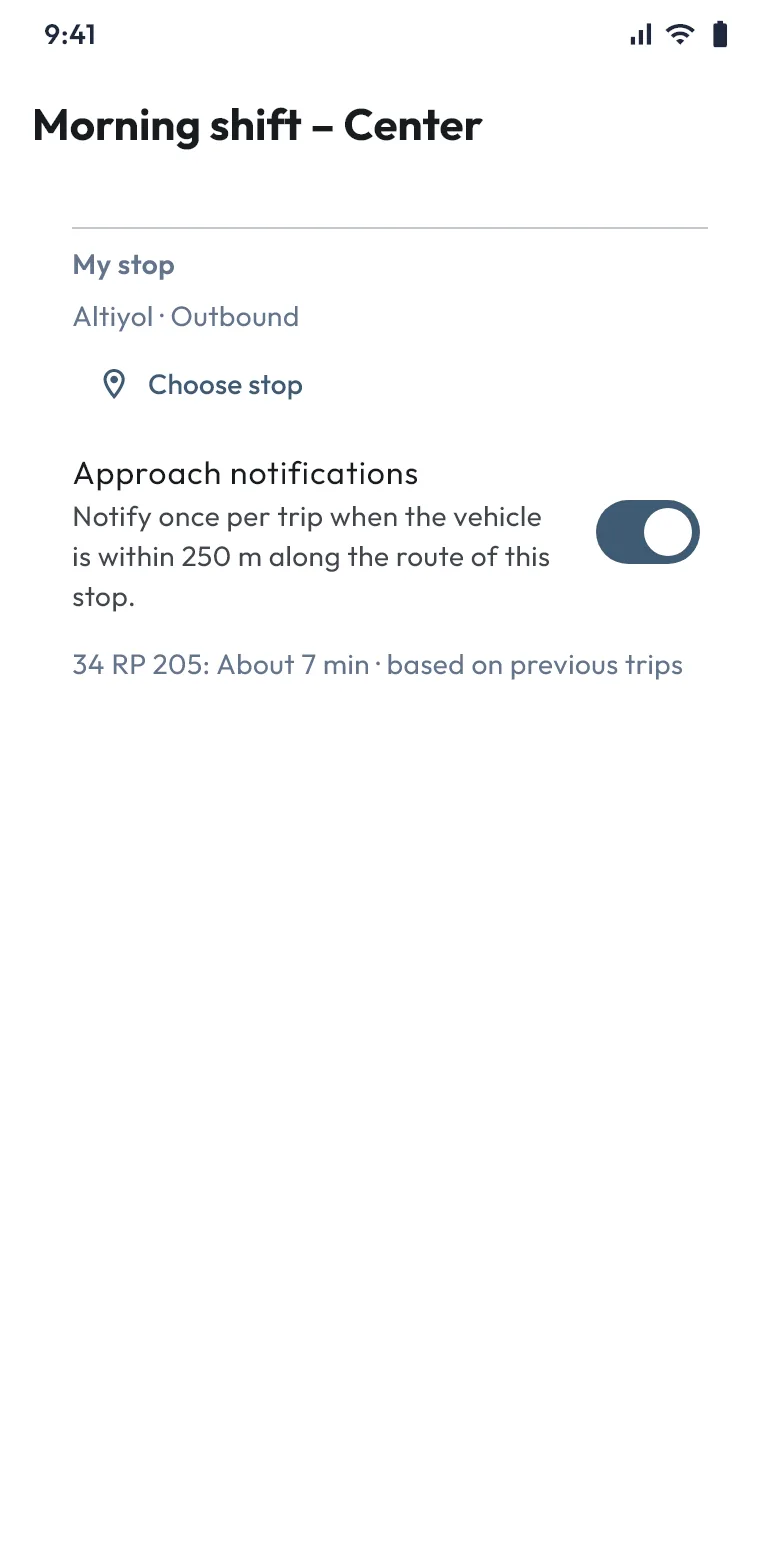
- Under My stop, choose your stop with Choose stop.
- Turn on Approach notifications. You get one notification per trip when the vehicle is 250 metres from the stop along the route.
- During a trip the estimated arrival is shown under the stop, "based on current speed" or "based on past trips".
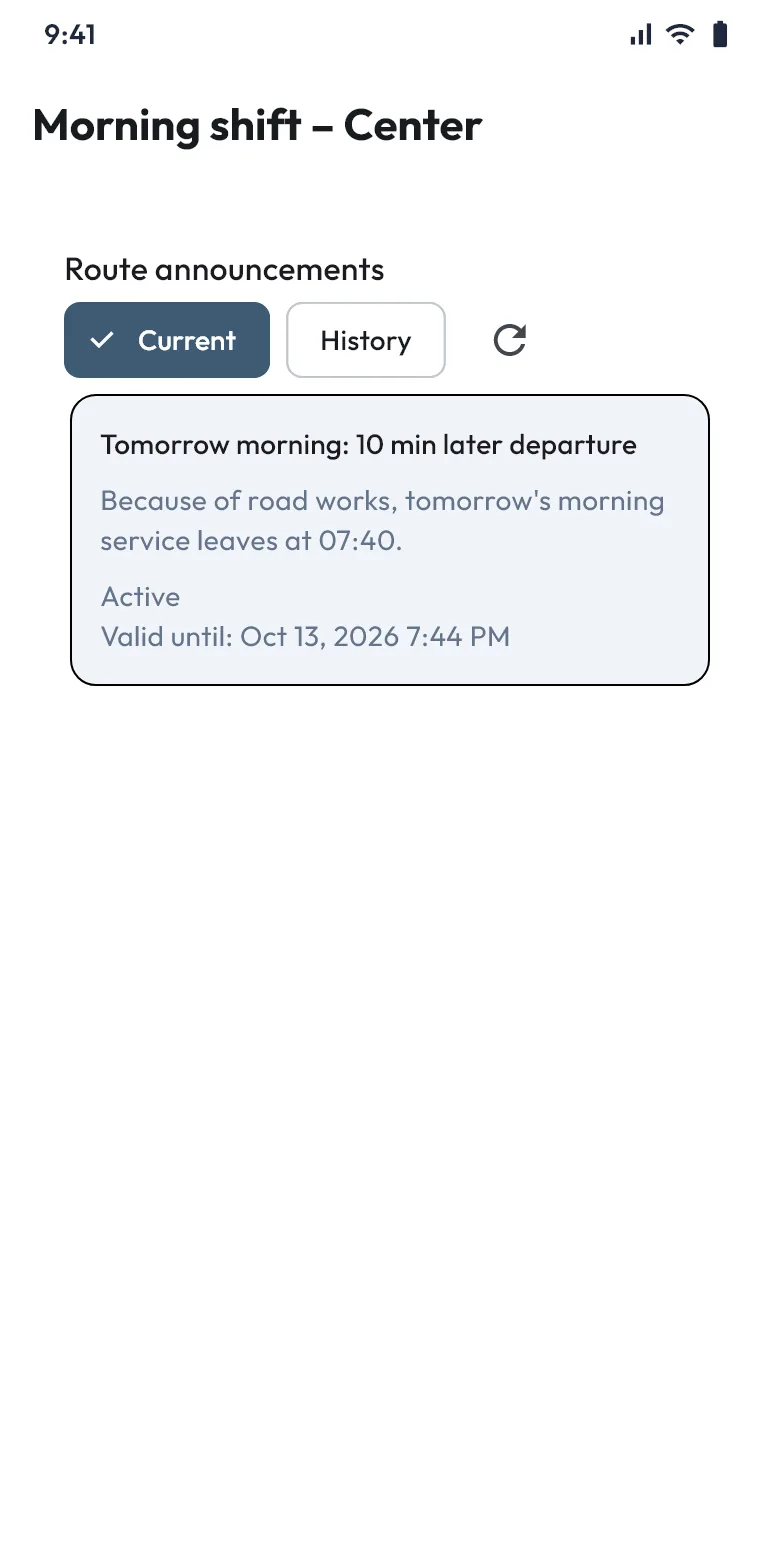
- Read the company's current and past announcements under Route announcements.
5. My service: live map
The My service tab shows the route and the vehicles on the road. Live and last known positions are marked differently, with how long ago the position arrived. If no vehicle is on the map, the trip has most likely not started yet.
6. My Account: suggesting a pickup point and settings
- In My Account, type your name and save.
- Choose your pickup point on the map.
- Under your company, choose the route and tap Propose this point. The status becomes "Waiting for company approval"; once the company approves, you are added to its passenger list.
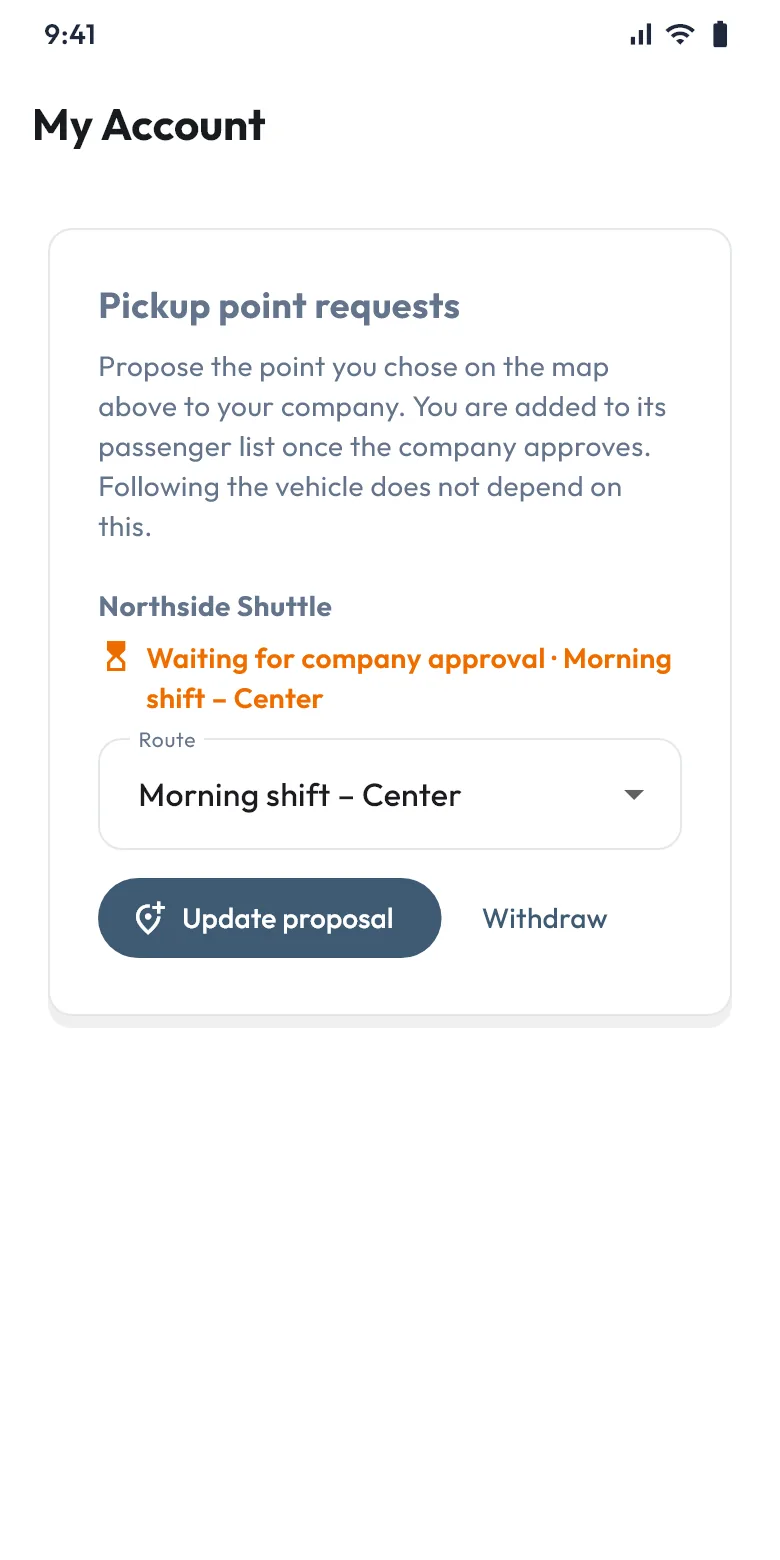
- Pickup suggestions exist only in Private and Organization companies, and following the vehicle does not depend on them.
- The Route announcement notifications switch is also in My Account.