User guide · Company panel
3 The overview screen
The Overview is the panel's home page. It shows your fleet right now, today's planned trips and the records that need attention. It refreshes every 15 seconds; Refresh updates it at once.
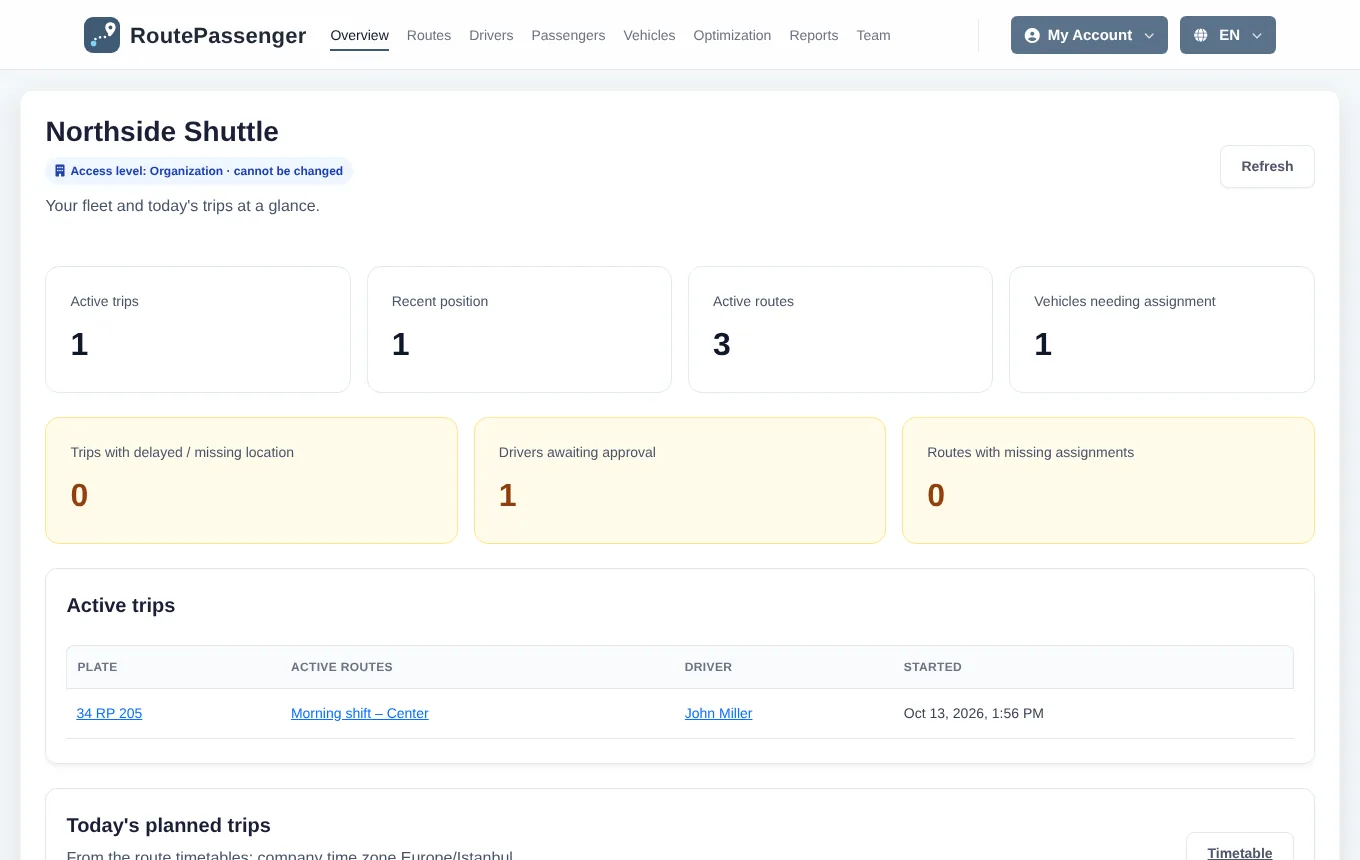
Top of the page
- Company name and access level badge: your company's level and that it cannot be changed.
- Counters: active trips, vehicles with a recent position, active routes and vehicles needing assignment.
- Attention cards (yellow): trips with a delayed or missing location, drivers awaiting approval and routes missing a vehicle or driver. Click a card to jump to its list.
Active trips
Every vehicle on the road is listed with its plate, route, driver and start time. Trips that started at night and run into the next day are shown too. The links open the related records.
Today's planned trips
Today's list comes from the timetables of your routes, in the company's time zone. The status of each row:
| Status | Meaning |
|---|---|
| Upcoming | The departure time has not come yet. |
| Due now | The departure time has passed, the alert time has not. |
| Not started · N min | The trip has not started although the alert time has passed. |
| On the road | The trip is running; a late departure shows "left N min late". |
| Completed | The trip has ended. |
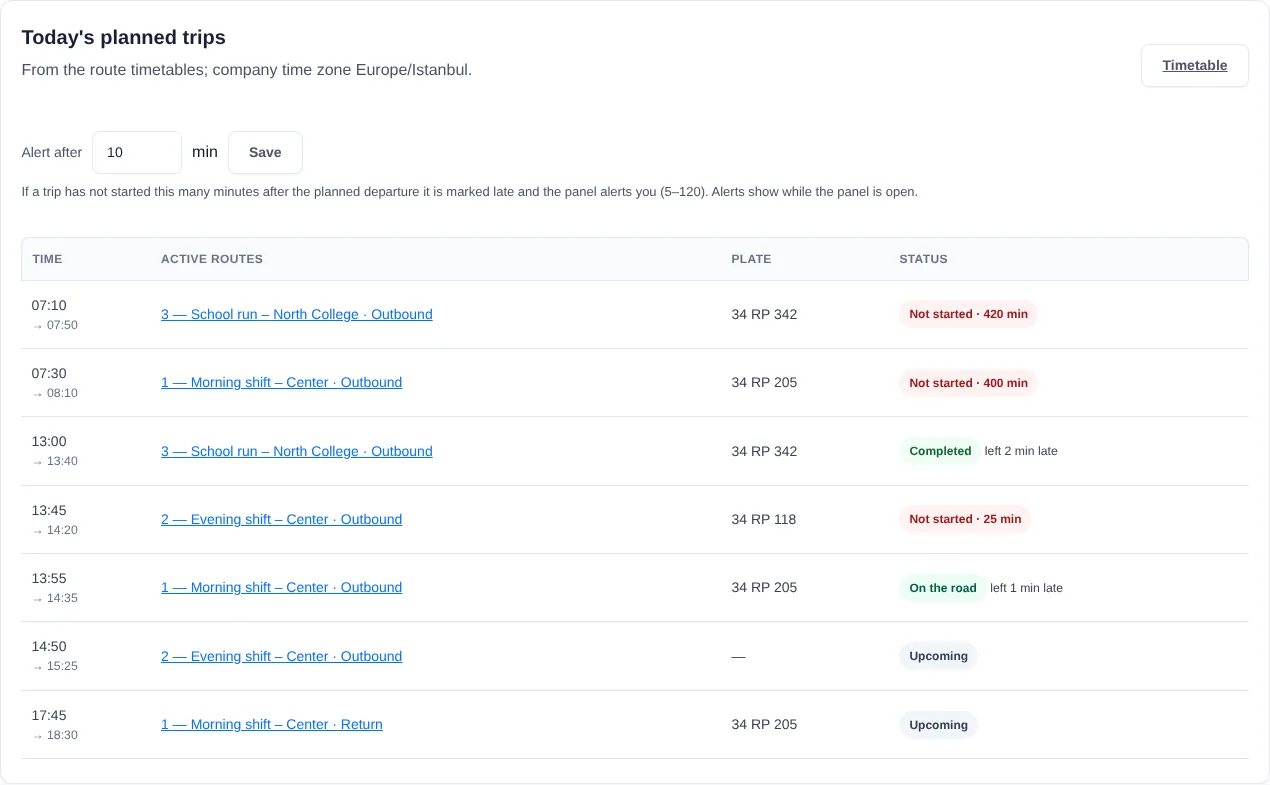
When a driver starts a trip, it is matched automatically to the nearest planned departure on the same route; the driver does not choose anything in the app.
Drivers awaiting approval and routes missing assignments
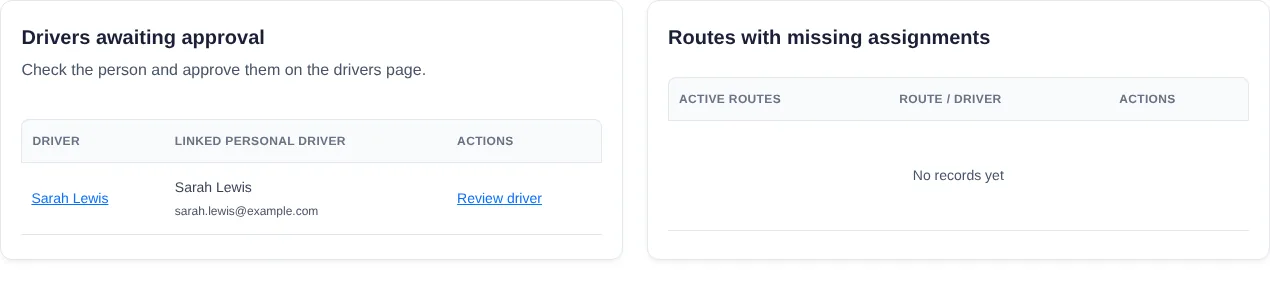
- Drivers awaiting approval: the name and email of the person who added the company account in the app. Review driver takes you to the record on the Drivers page, where you approve it.
- Routes missing assignments: routes without an in-service vehicle or an active driver.
Fleet map and vehicles
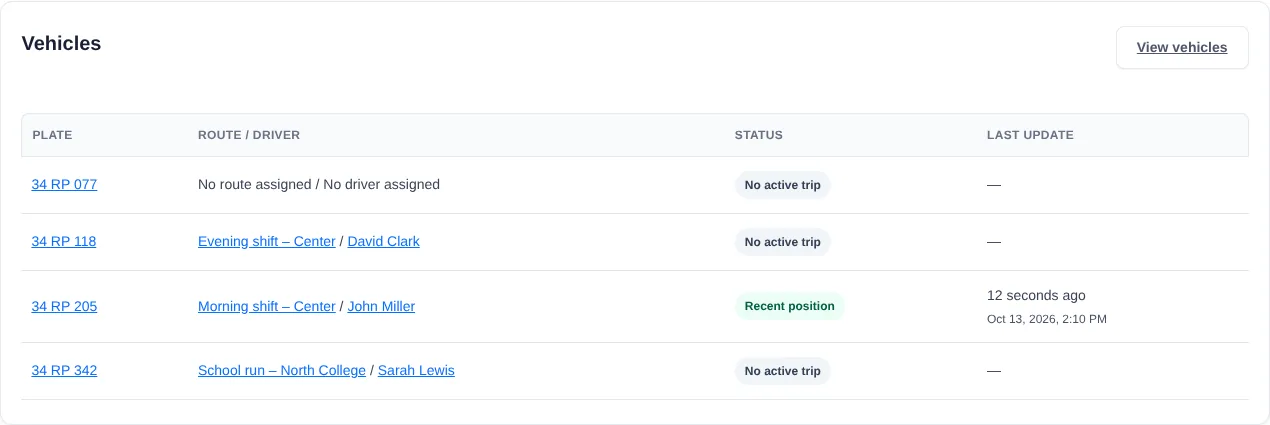
Only vehicles on an active trip are shown on the map. A vehicle whose position is older than 2 minutes is marked yellow. The Vehicles table below shows each vehicle's assignment, status and how long ago its last position arrived.
Late-trip alert
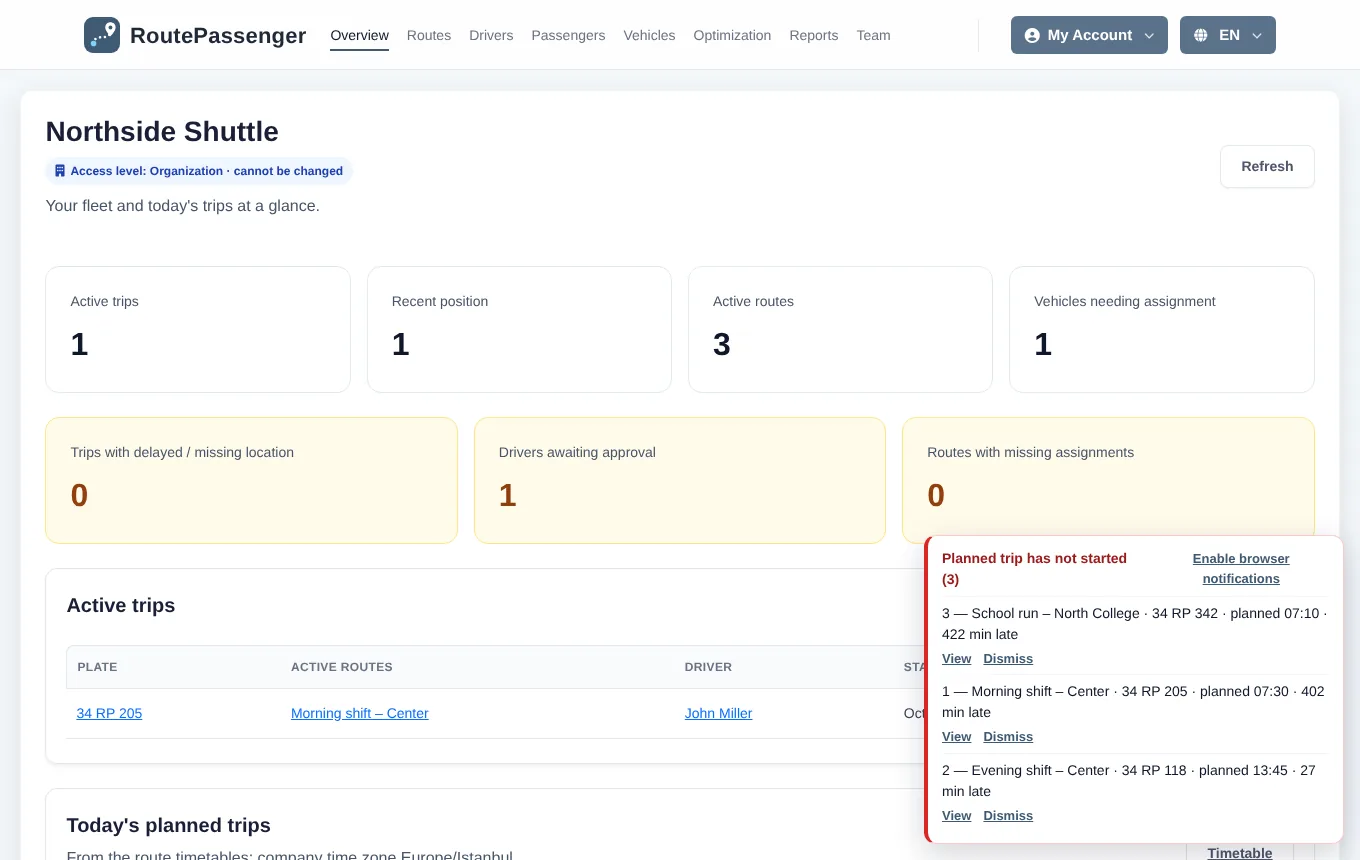
If a planned trip has not started when the time you set has passed (10 minutes by default), an alert box appears at the bottom right. Enable browser notifications also notifies you when the panel is in a background tab. Details: Timetable and late-trip alerts.