User guide · Company panel
10 Passengers
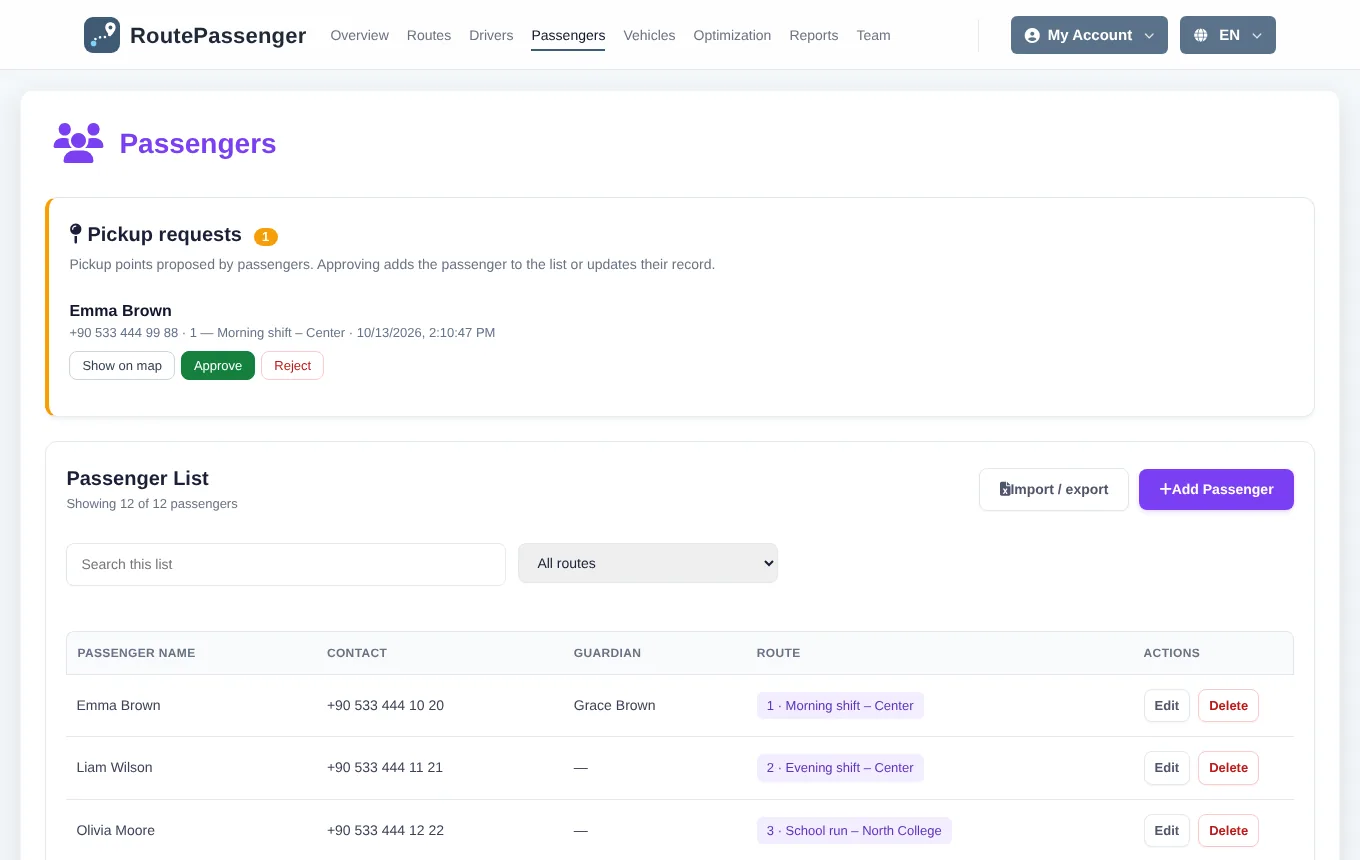
The Passengers page is your company's passenger list: name, contact, parent, route and pickup location. It is used for route optimization and planning. Following the vehicle in the app does not depend on this list; a passenger who joins with a QR code or key can follow it straight away.
Adding and editing a passenger
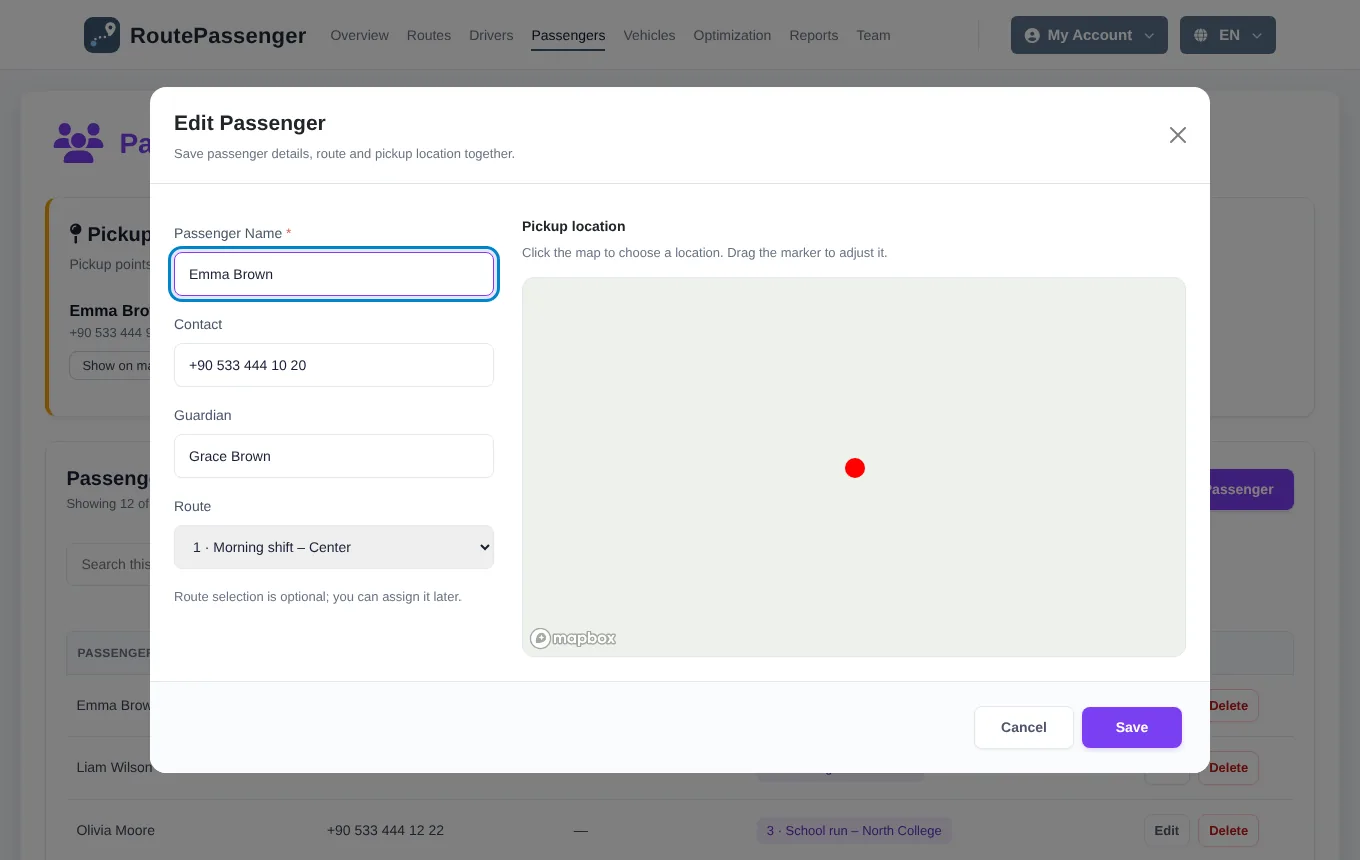
- Click Add Passenger, or Edit in a row.
- Enter the passenger name (required), contact and, if needed, the parent's name.
- Choose the Route (optional).
- Click the map on the right to choose the pickup location; drag the marker to adjust it.
- Click Save.
The search box and the All routes menu filter the list. Delete removes the passenger record permanently.
Pickup requests
In Private and Organization companies a passenger can suggest their own pickup point from the app. Requests appear in the Pickup requests card at the top of the page.

- Show on map: the suggested point appears on the map with an orange marker; its distance from the route is shown.
- Approve: if the person already has a passenger record in this company, its name, phone, route and pickup point are updated; otherwise a new record is created.
- Reject: nothing changes in the list. The passenger can suggest again after 24 hours.
Bulk import and export with Excel
The Import / export menu has three options:
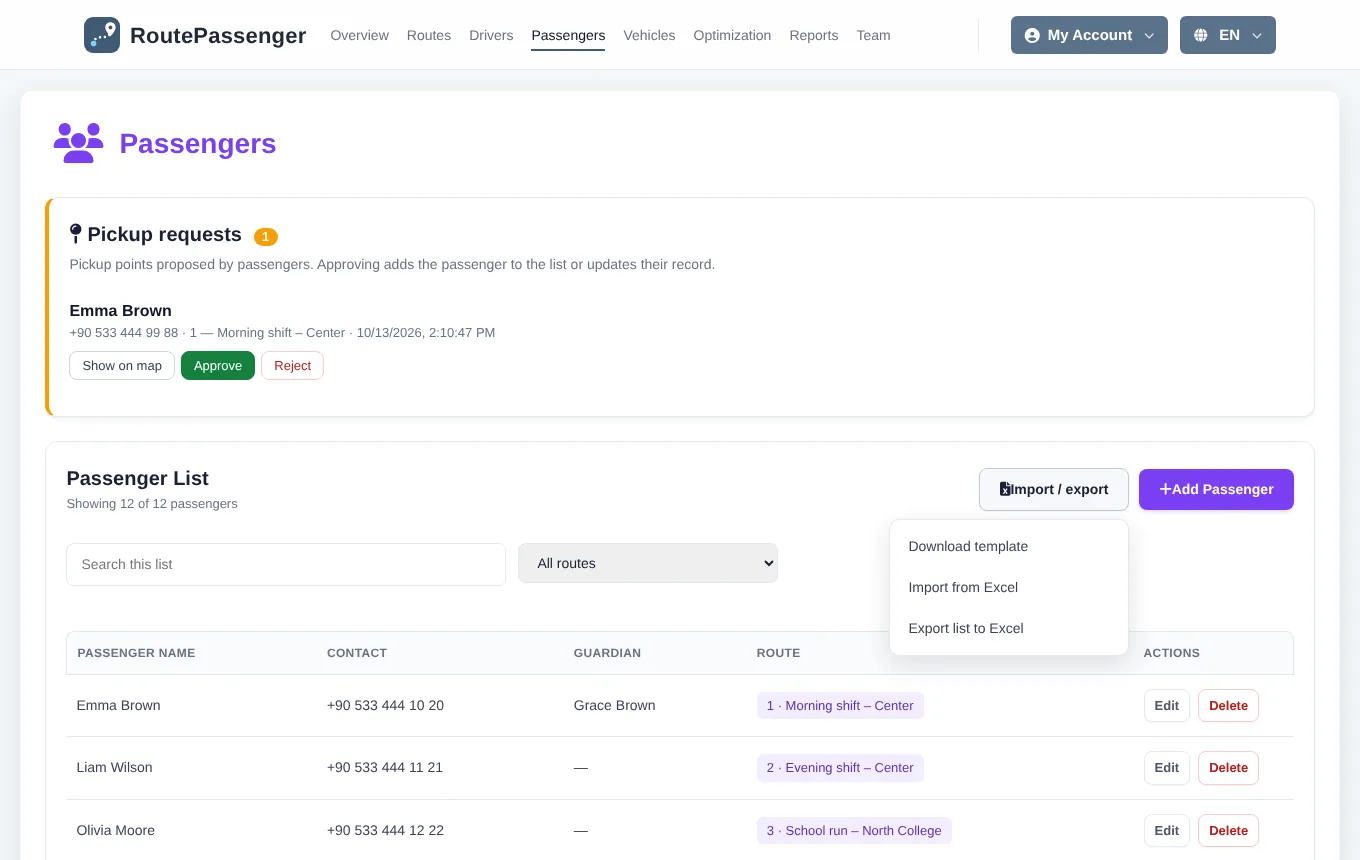
- Download template: an Excel file with the column headings, a sample row and an instructions sheet.
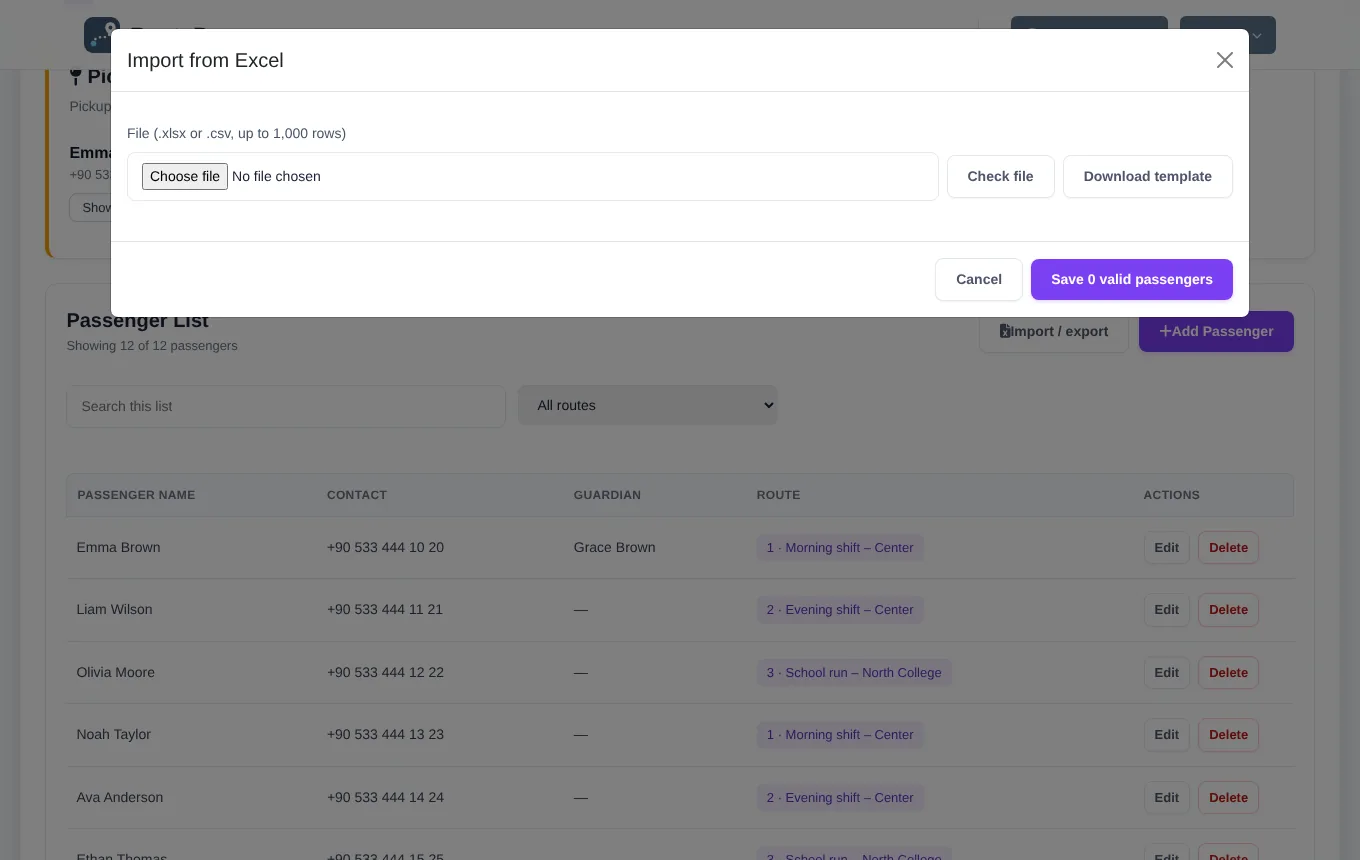
- Import from Excel: upload the file you filled in.
- Export list to Excel: the active passengers, in the same columns as the template.
Importing, step by step
- Download the template and fill it in. At least the Full name column is needed; Phone, Parent name, Route no and Pickup latitude/longitude are optional.
- Open Import from Excel, choose the file (.xlsx or .csv, up to 1,000 rows) and click Check file. This step creates no records.
- The preview marks each row Ready, Error (with the reason) or Duplicate (a passenger already in the list). You can download an error report for the rows with problems.
- Click Save … valid passengers. Only valid rows are added.