User guide · Company panel
6 Timetable and late-trip alerts
A timetable lists on which days and at what times a route departs and arrives. "Today's planned trips" on the Overview, late-trip alerts and the on-time rate in reports are all calculated from it. The timetable is optional.
Entering a timetable
- In Routes, click Timetable in the route's row.
- Add rows with Add departure.
- On each row enter the Direction (Outbound/Return), the Departure time and, optionally, the Arrival time. An arrival earlier than the departure counts as the next day.
- Choose the Days; the Quick pick menu offers Weekdays, Every day and Weekend.
- Optionally choose a Vehicle; if empty, any vehicle on the route counts.
- For a limited period such as a school term, enter the Valid start and end dates.
- Click Save.
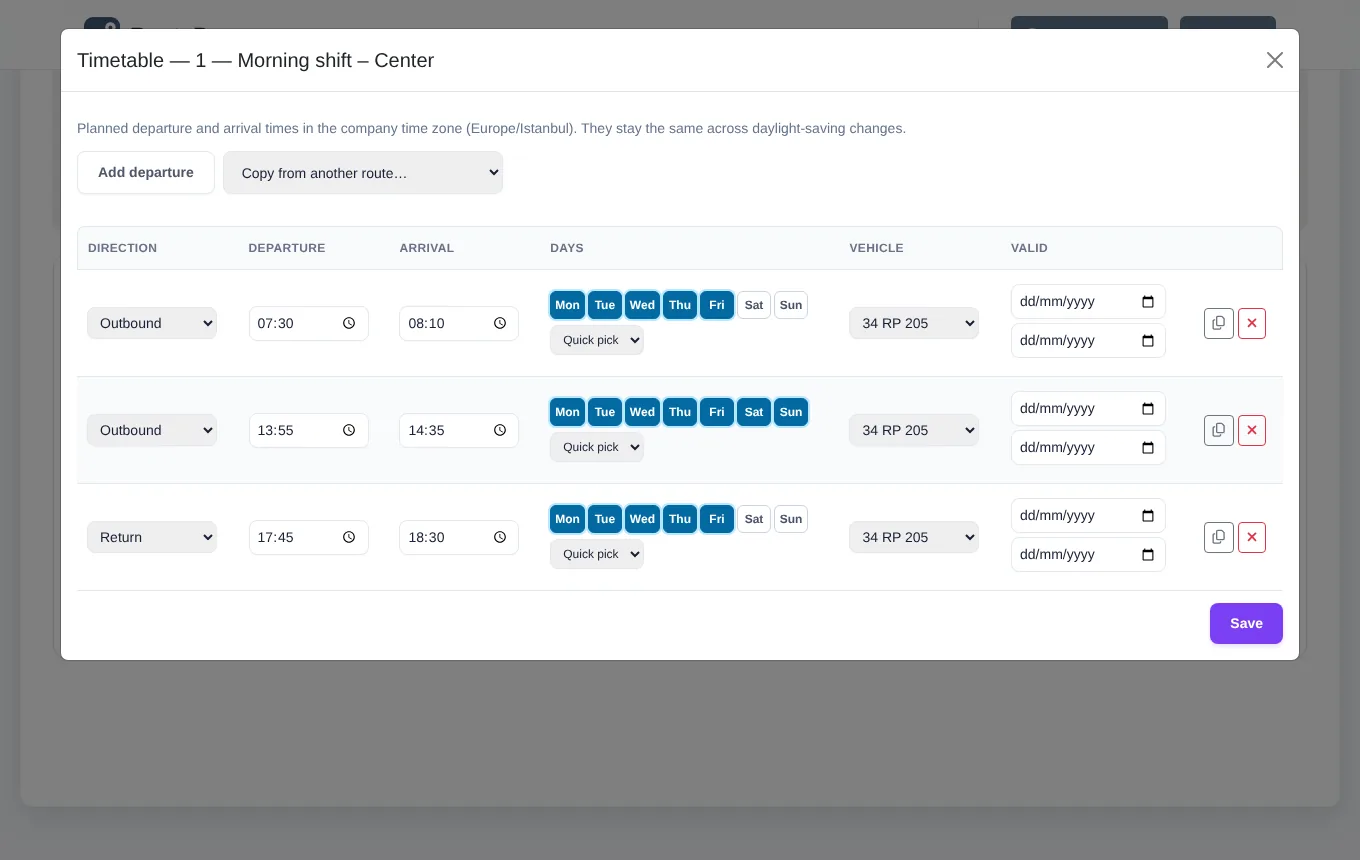
Times are stored as clock times in the company's time zone; when daylight saving time changes, 07:30 is still 07:30.
How trips are matched to the timetable
When a driver starts a trip, it is matched to the nearest planned departure on the same route (on the same vehicle, if the row names one): trips that start between 45 minutes before and 120 minutes after the departure. The driver does not choose anything. A trip ended within 3 minutes counts as a false start and does not take the departure.
Late-trip alerts
- On the Overview, in the Today's planned trips card, enter the Alert after time (5–120 minutes, 10 by default) and click Save.
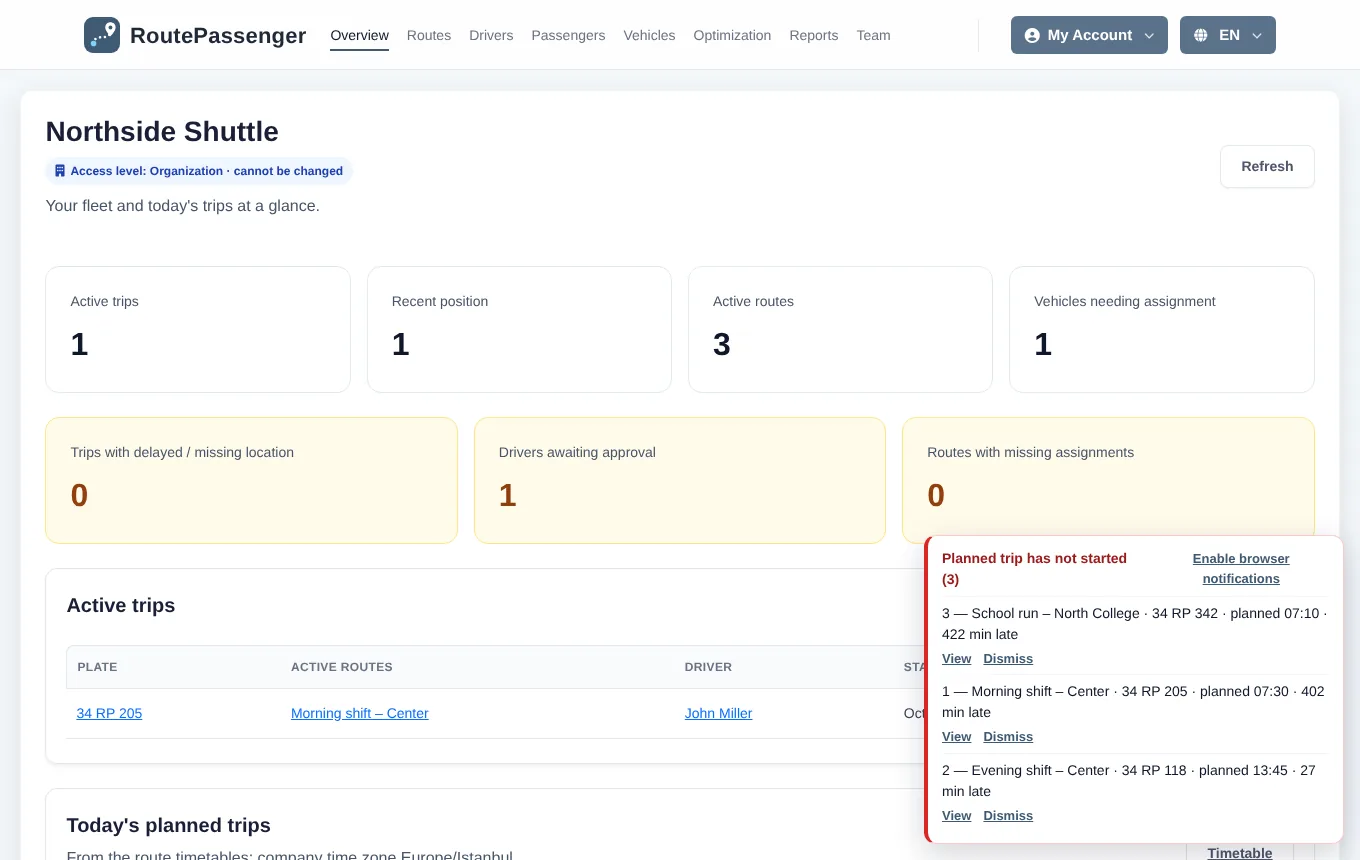
- A trip that has not started this many minutes after its planned departure becomes "Not started" and an alert appears at the bottom right of the panel.
- Enable browser notifications in the alert box also notifies you when the panel is in another tab. An alert you dismiss does not come back that day.