
User guide · Company panel
9 Drivers
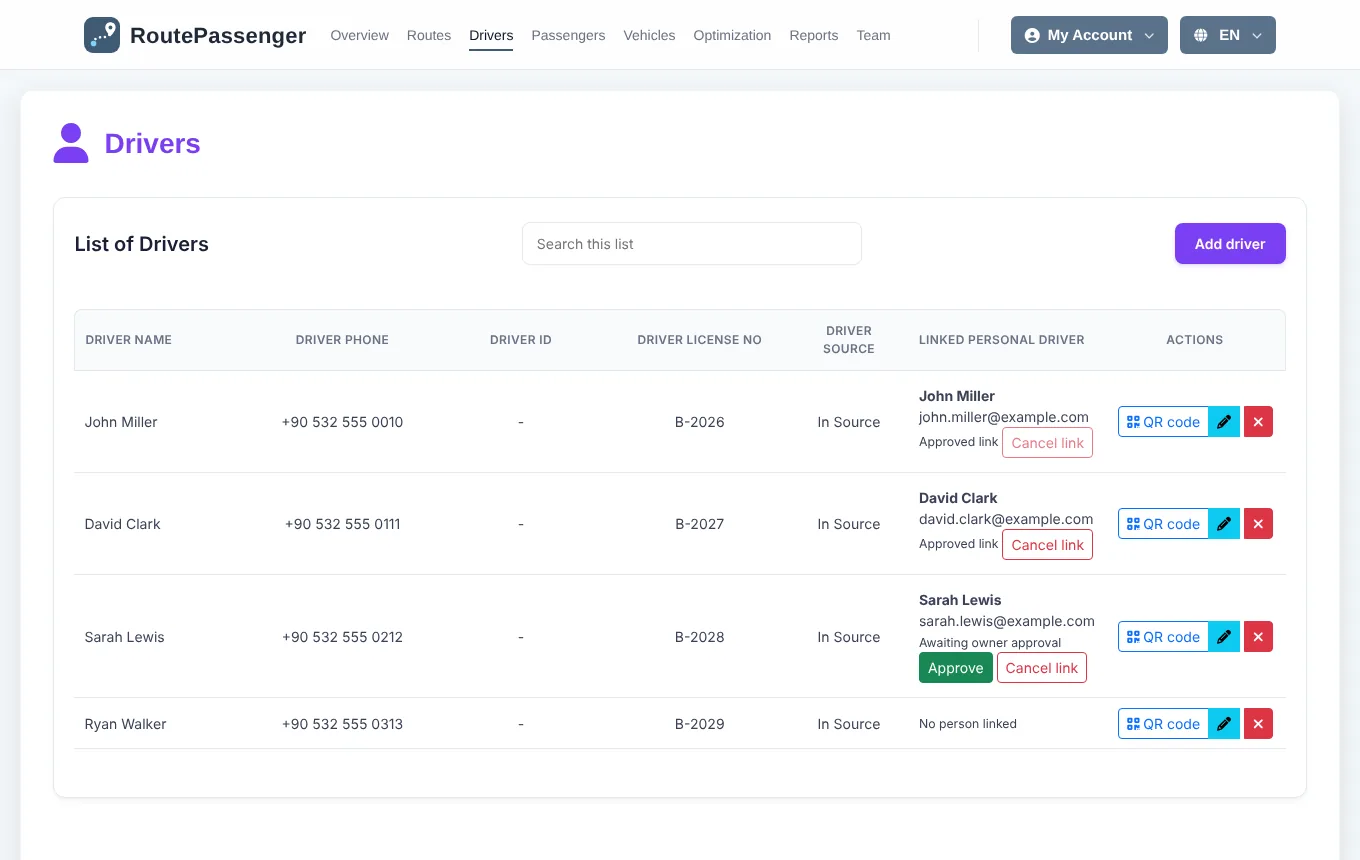
A driver signs in to the Route Driver app with their own personal account and adds the driver account your company gave them. Until you approve this link, the driver cannot reach any vehicle or route.
Adding a driver
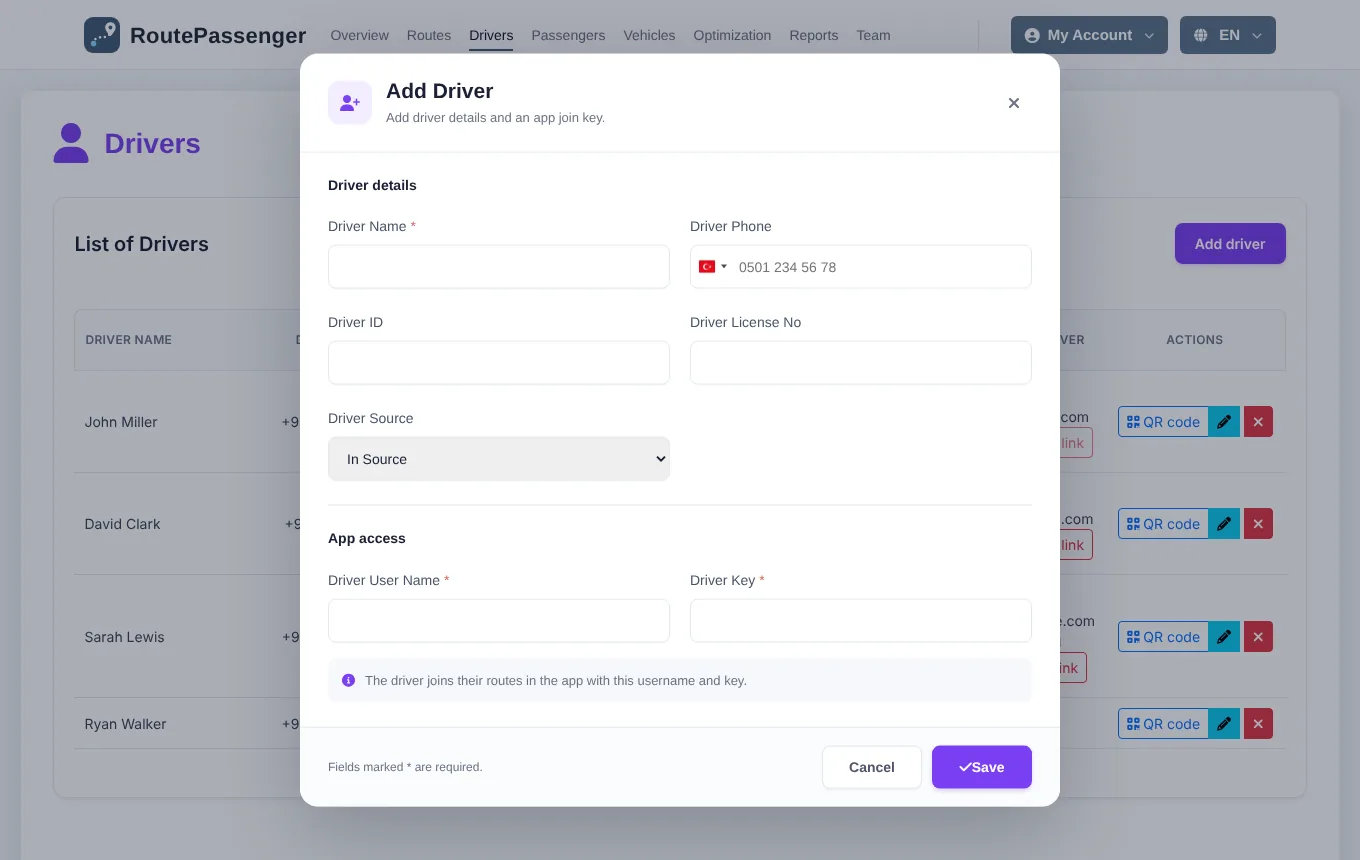
- Open Drivers and click Add driver.
- Driver details: name (required), phone, and optionally a driver ID and licence number. Under Driver source choose whether the driver is in-house or external.
- App access: choose a driver username and a driver password (key).
- Click Save.
Sending the driver their join details
Give the driver one of these:
- QR code: click QR code in the driver's row. Show the code, send it with Download QR, or send the invite link with Copy link.
- Username and password: send the driver username and password you chose.
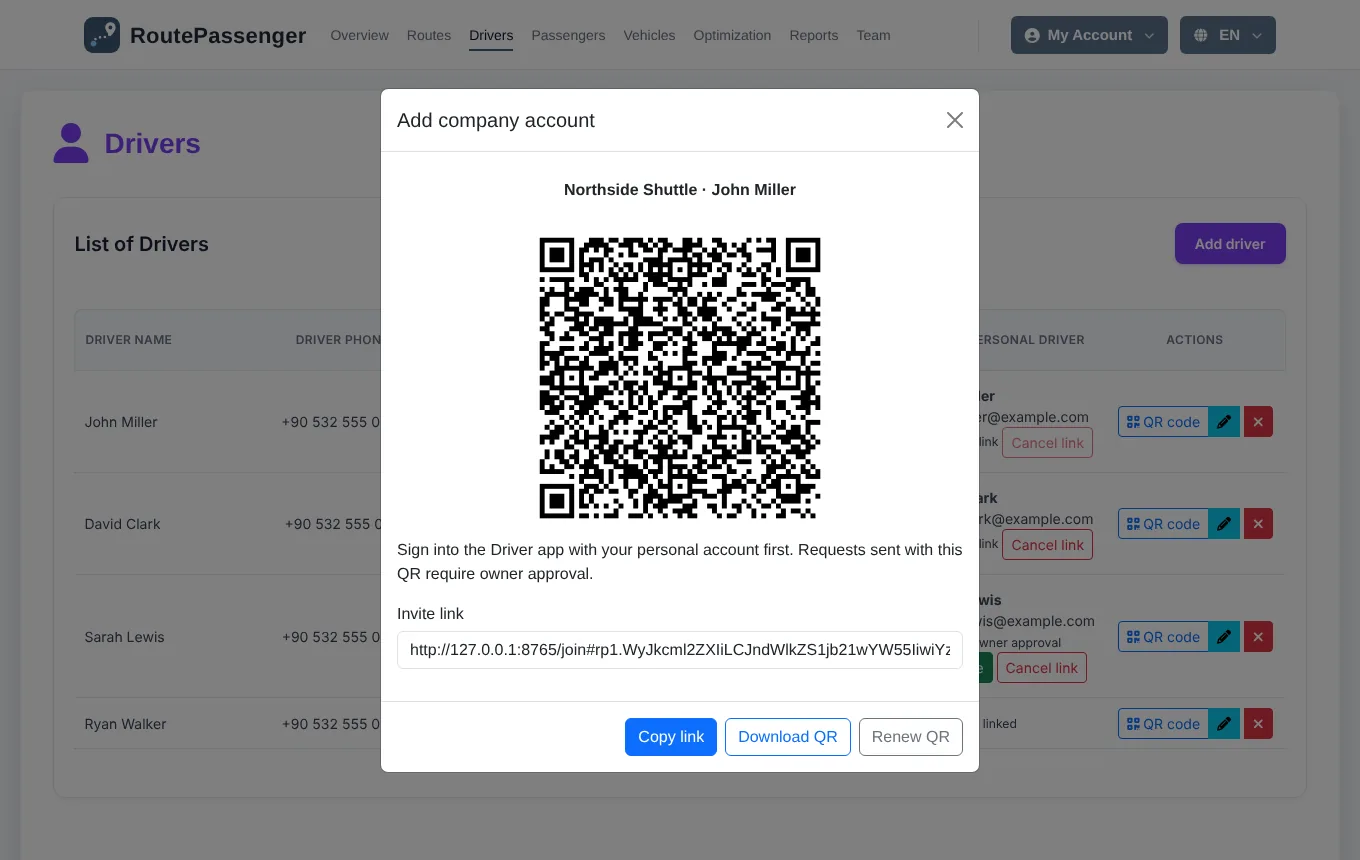
The driver installs Route Driver, creates an account with their own email and enters these details with + (Driver app).
Approving the link
- When the driver adds the account, the row shows the person's name and email and Awaiting owner approval. The "Drivers awaiting approval" count on the Overview goes up too.
- Check that it is the right person and click Approve.
- After approval the driver sees the route of the vehicle assigned to them and can start trips. If no vehicle is assigned yet, the app says the assignment is pending.

Cancelling a link
Cancel link removes a pending or approved link. The driver key is renewed and the new key is shown to you once; the old key and old QR code stop working. A driver with an active trip cannot be unlinked. The driver can also remove the account from the app; the list then shows who removed it and when.