
User guide · Getting started
2 Access levels
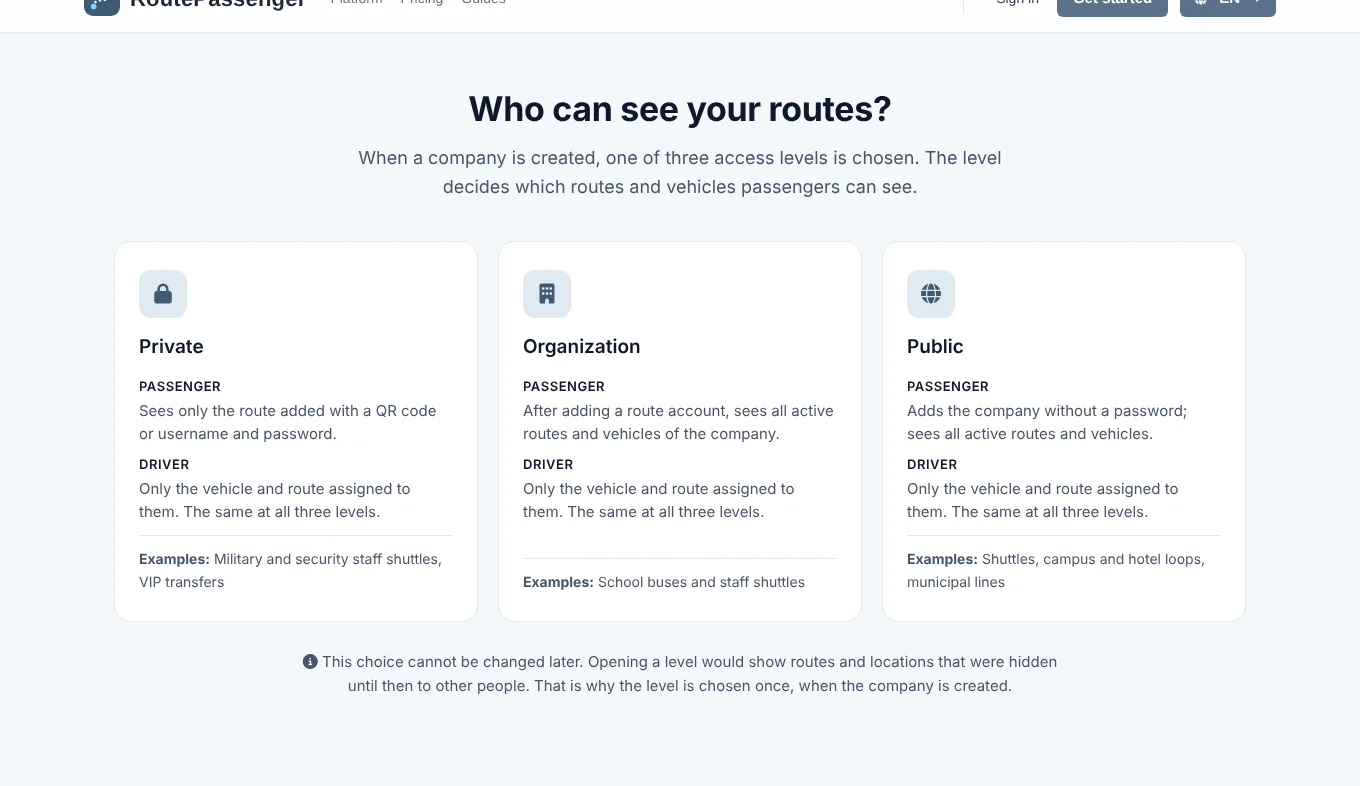
The access level decides which of your company's routes and vehicles passengers can see in the app. It is chosen once, when the company is created, and cannot be changed later.
| Level | What a passenger sees | Typical use |
|---|---|---|
| Private | Only the route added with a QR code or username and password, and that route's vehicles. | Military and security staff shuttles, VIP transfers |
| Organization | After adding a route account, all active routes and vehicles of the company. | School buses and staff shuttles |
| Public | Adds the company without a password and sees all active routes and vehicles. | Shuttles, campus and hotel loops, municipal lines |
For drivers
A driver's rights do not depend on the level and are the same at all three: a driver sees only the vehicle assigned to them and that vehicle's route, and shares location only for that vehicle. Even in a public company a driver cannot see other vehicles.
Why can't it be changed later?
Opening a level (for example from Private to Organization) would show routes and locations that were hidden until then to other passengers. Passengers and institutions join relying on this rule, so the level is chosen once, when the company is created.
Where do I see the level?
- In the panel, under the title of the Overview: Access level: Organization · cannot be changed. Hover over it for an explanation.
- On the My Account page, with what it means for passengers and drivers.
- In the passenger app, under every added account, for example "This company is organization-only: you see all its active routes and vehicles."
What else the level affects
- Pickup requests are taken only by Private and Organization companies.
- Route announcements and stops are shown for the routes a passenger can see.
- Route optimization: in a Private company the passenger's phone is bound to the route they joined; if a plan moves the passenger to another route, give them the new route's QR code.